Emacs as file manager
Almost every computer user sooner or later has to face the problem of renaming several files at once. For example, change the file extension, change the name, insert the sequence number, and so on. Someone writes shell scripts, someone uses programs specially created for this purpose, but real Indians use Emacs.
In Emacs, there is a mode like dired . This is a directory browsing mode. To enable it just dial
after that, just select the path to the directory
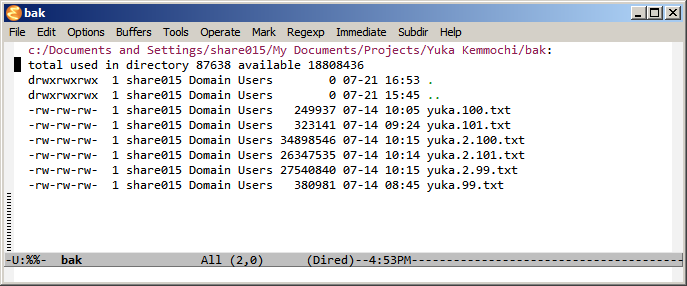
Suppose we need to rename the files in this directory, turning the name yuka into the first and last name yuka.kemmochi . We will use regular expressions for this [ 1 ] . Why regular expressions? Because this is probably the most flexible way. And although in this case we shoot from a laser gun with automatic aiming at sparrows, the technique tested here will be useful in more complex cases.
')
Regular expressions are not so simple in themselves. In Emacs, the case is complicated by the fact that it uses POSIX regular expressions, and special characters must be escaped with a slash. Since the slash itself is a special character, it must also be escaped. Plus, in the lines of each slash must be doubled. All this leads to the fact that a regular expression in Emacs may look, for example, like this
What corresponds to the usual
On the other hand, Emacs regular expressions are very easy to compose and test. To do this, we probably use one of the most powerful tools of Emacs RE-builder:

In the field that opens, you can enter an expression, remembering that it is entered as a string, so all slashes must be doubled .

Entering this is interactive, that is, Emacs tint what corresponds to the entered expression. Moreover, individual groups are highlighted in a separate color.
Making an expression, we are ready to rename files.
Before operating with files, we need to select them. You can simply move through the buffer and standing in the name of the file, press m , you can enter % g and then in the prompt to enter part of the file name, you can use regular expressions again typing % m

Select all the files simply

Voila

Further operations are performed on the selected files.
To rename files using regular expressions, click % R.

The case of a letter is important, that is, Shift and 5 are pressed and then, without releasing Shift, press r . As a rule, 5 and r are next to each other on the keyboard, so renaming files using regular expressions can be started fairly quickly and easily.
We introduce our regular expression, remembering that the number of slashes should be “halved” compared to what we tried in the RE-builder.
An additional trick is that Emacs remembers what you typed in the invitations before and simply navigate through the input history using Alt-p - backward and Alt-n - forward. Selecting the desired line from the history can be edited and used again.
After that, it is proposed to enter expressions for the new file name

Alt-p / Alt-n work here.

We use so-called replacement (Regular Expression Replacements). The most interesting are the following:
When you first rename, Emacs will ask

It should be noted that only those files from the selected ones whose name matches the regular expression entered immediately after % R will be renamed.
You can press y / n , agreeing or refusing to rename the file. Emacs will go to the next. You can click ! (i.e. Shift 1
), by making Emacs run through all the marked files, or you can complete the entire renaming operation by pressing q .

Easy and simple files renamed.
[1] You can also use the so-called wdired-change-to-wdired-mode , but that's another story.
In Emacs, there is a mode like dired . This is a directory browsing mode. To enable it just dial
Alt-x diredafter that, just select the path to the directory
Suppose we need to rename the files in this directory, turning the name yuka into the first and last name yuka.kemmochi . We will use regular expressions for this [ 1 ] . Why regular expressions? Because this is probably the most flexible way. And although in this case we shoot from a laser gun with automatic aiming at sparrows, the technique tested here will be useful in more complex cases.
')
Regular Expressions in Emacs
Regular expressions are not so simple in themselves. In Emacs, the case is complicated by the fact that it uses POSIX regular expressions, and special characters must be escaped with a slash. Since the slash itself is a special character, it must also be escaped. Plus, in the lines of each slash must be doubled. All this leads to the fact that a regular expression in Emacs may look, for example, like this
\\<\\(HKCU\\|HKLM\\|dirifempty\\|files\\|filesandordirs\\)\\>
What corresponds to the usual
^(HKCU|HKLM|dirifempty|files|filesandordirs)$
On the other hand, Emacs regular expressions are very easy to compose and test. To do this, we probably use one of the most powerful tools of Emacs RE-builder:
In the field that opens, you can enter an expression, remembering that it is entered as a string, so all slashes must be doubled .
Entering this is interactive, that is, Emacs tint what corresponds to the entered expression. Moreover, individual groups are highlighted in a separate color.
Making an expression, we are ready to rename files.
File operations
Before operating with files, we need to select them. You can simply move through the buffer and standing in the name of the file, press m , you can enter % g and then in the prompt to enter part of the file name, you can use regular expressions again typing % m
Select all the files simply
Voila
Further operations are performed on the selected files.
To rename files using regular expressions, click % R.
The case of a letter is important, that is, Shift and 5 are pressed and then, without releasing Shift, press r . As a rule, 5 and r are next to each other on the keyboard, so renaming files using regular expressions can be started fairly quickly and easily.
We introduce our regular expression, remembering that the number of slashes should be “halved” compared to what we tried in the RE-builder.
An additional trick is that Emacs remembers what you typed in the invitations before and simply navigate through the input history using Alt-p - backward and Alt-n - forward. Selecting the desired line from the history can be edited and used again.
After that, it is proposed to enter expressions for the new file name
Alt-p / Alt-n work here.
We use so-called replacement (Regular Expression Replacements). The most interesting are the following:
- \ 1 ... \ 9 - groups, that is, that in the initial expression is limited by brackets \ (and \) in the order from left - inside - to right
- \ & - that was necessary for all regular expression (i.e. group 0)
- \? - user invitation to enter. Each time you rename, Emacs will ask what to insert instead of \?
When you first rename, Emacs will ask
It should be noted that only those files from the selected ones whose name matches the regular expression entered immediately after % R will be renamed.
You can press y / n , agreeing or refusing to rename the file. Emacs will go to the next. You can click ! (i.e. Shift 1
), by making Emacs run through all the marked files, or you can complete the entire renaming operation by pressing q .
Easy and simple files renamed.
Additional literature
[1] You can also use the so-called wdired-change-to-wdired-mode , but that's another story.
Source: https://habr.com/ru/post/99762/
All Articles