Augmented Reality. Search

Search using augmented reality (AR) is becoming more popular. Appear Russian analogues of such search engines, or rather browsers. In this publication, I will describe the process, in my opinion, of the simplest creation of a search using AR and a mobile device — use a ready-made platform and use the API to create your own broadcast channel.
Today in the world I know 2 large companies that provide such opportunities, it is: Layar and Junaio . Both provide an API for the developer to create their own channels, applications for the iPhone , Android . The scheme of work is as follows:
- We register as a developer.
- We get the API key.
- Create and customize your channel.
- We create server part of the channel (content).
- Download the AR application on the phone, check.
Junaio is a project of Metaio - a Munich-based company selling Unifeye applications for Augmented Reality development. The Junaio project is young and less known than Layar, in spite of this project is quite promising and rapidly developing, today I will describe the process of creating a channel in it.
I propose to do a little more than “hello world” , and parse the code of my current channel - http://dogoodto.me .
')
1. Register as a developer
Here you can start the registration procedure. All information that will be entered on this page will continue to be in the description of your channel.
2. Get the API key
Actually with the help of this key we will be able to connect our content with the channels created in Junaio. By providing the Callback API, we enable the junaio server to get information from our server on 4 requests:
channels / subscribe
When a user subscribes or unsubscribes from your feed.
pois / search
When
Whenever an update request is initiated by a client, this request will be sent to our server. Requests for updates can be triggered due to the opening of a channel or a significant change in the user's position.
pois / event
This request will be sent to your server when the user starts interacting with your POI (Points Of Interest).
pois / visualsearch
A request is sent to our server with the image / photo that the user made. Information is analyzed on the server and the client waits for a response from junaio glue (it allows you to add 3D objects in real time to a color marker, Natural Feature Tracking on your phones, of course, you can also attach objects to gps coordinates, but we will not get this accuracy.)
3. Create junaio channel
You will need to enter certain channel information, such as description and thumbnails. The main thing is to provide the callback address of your server, where the POI information will come from.
4. Create the server part of the content.
From the developer’s menu on the junaio website, you can download several versions of packages for a quick start with examples. Maybe PHP package using Zend encryption or ASP.NET C #. I suggest to stop at PHP.
This is an important stage in which the main action will take place, so I will divide it into two parts:
4.1. Set up a server connection.
Download the junaio starter pack. Of course, our server should have Apache Webserver, installed PHP 5, Zend Framework (the minimum free package can be downloaded from here )
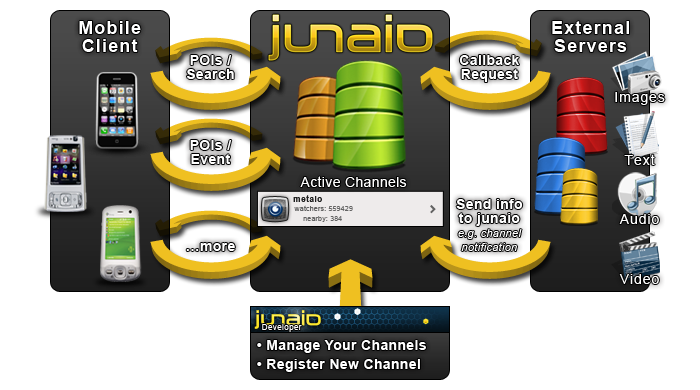
The installation and setup itself is extremely simple:
- unpack files in a directory on the server. The name can be any, the main thing in the callback url is to specify the exact path to the / html directory of the downloaded distribution.
- rename _.htaccess to .htaccess.
- copy the Zend Framework to the folder with the Junaio distribution.
- edit config / config.php (where you have to enter the received API key).
4.2. Creating the logic of our channel and sending junaio data to the server.
The dogoodto.me project was conceived as a service that makes you a kind person, allowing you to search for “screams” for help and execute them both through the web site and through AR search from mobile devices.
This project uses the Google Maps API and a simple php-mysql bundle to save the “call” for help. This is the logic of the project. It is integrated with the junaio framework in the html / index.php file i. roughly speaking right in our callback url. I will give the code that I use for the project dogoodto.me:
header("Content-type: text/xml");

// Start XML file, echo parent node
echo '<?xml version="1.0" encoding="UTF-8"?>';
echo '';

// Iterate through the rows, printing XML nodes for each
while ($row = @mysql_fetch_assoc($result)){
// ADD TO XML DOCUMENT NODE
echo '';
echo '' . parseToXML($row['name']) . '';
echo '' . parseToXML($row['address']) . ' ';
echo '' . $row['lat'] . ',' . $row['lng'] . ',13';
echo '' . $row['cdate'] . '';
echo '0,0,0';
// echo '';
// echo '';
echo '<mime-type>text</mime-type>';
echo 'text';
echo 'google-maps-icons.googlecode.com/files' . $row['type'] . '.png ';
echo 'google-maps-icons.googlecode.com/files' . $row['type'] . '.png';
echo '';
}

// End XML file
echo '';
As you can see, this is a simple output of an xml file that takes its values from the database. They are entered into the database by the users themselves, when they add calls for help on google maps. Each POI can be configured with different parameters, but mandatory (so that your channel passes the test without errors) are all the nodes listed above.
I note that dogoodto.me is used here to demonstrate something more than standard Junaio “Hello World” examples, and not to advertise “raw” service. If you have any ideas / criticism / suggestions about the project - I am open to cooperation.
You can write questions, if any, in the process of creating your channel - I will gladly share my experience. I would also like to advise the google group of this project, in which you can also get answers and help quickly.
UPD.
5. Download the AR application on the iPhone, check
After your channel has been checked by Junaio moderators, it will appear in the listing of the category you selected when registering the channel:

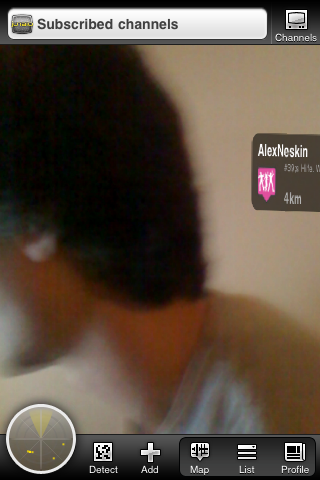
By activating the live view, you will see all the POIs sent by your server to the channel in Junaio.
Source: https://habr.com/ru/post/99686/
All Articles