Eclipse, MPICH and PTP for the user. Setting up and running tasks on a cluster
Configuring Eclipse, MPICH and PTP is one thing. And it is decided . Running a task is another matter. Especially if it concerns the end user. Caution - a lot of pictures.
First of all, we need a graphic session. How to use VNC or how to use a graphical session from Putty is described a lot where we will not stop.
Eclipse main window:
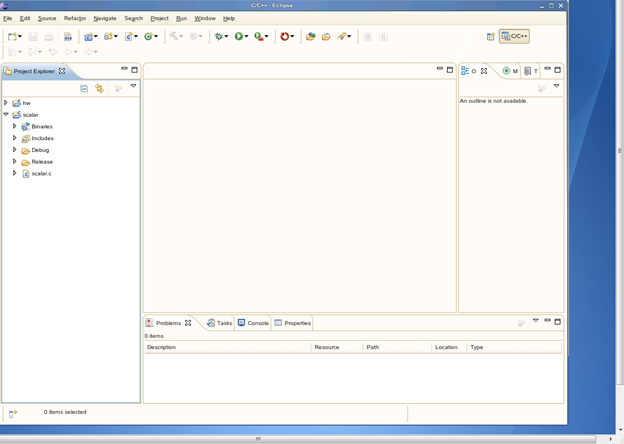
')
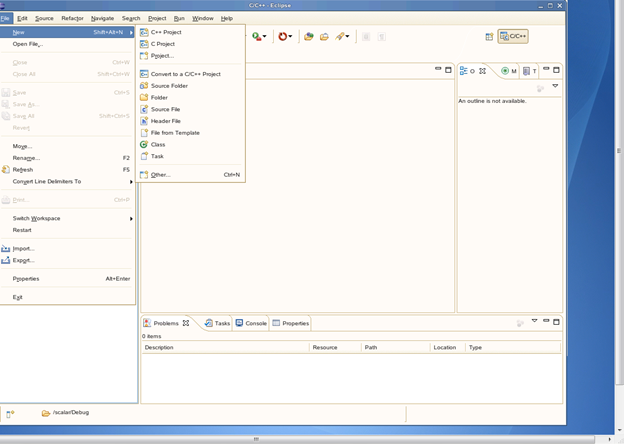
2) Select the desired type of project
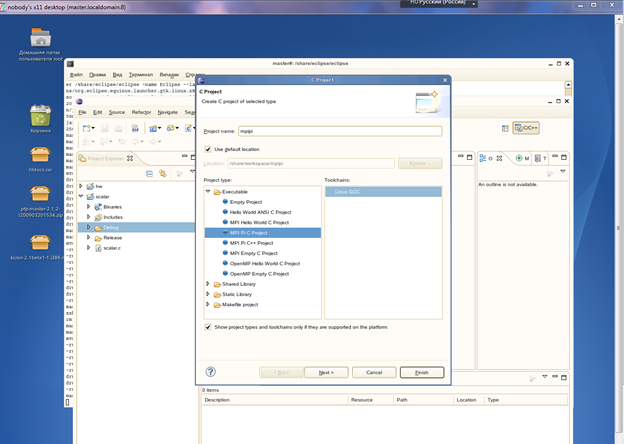
Choose a parallel calculation of the number Pi. If Eclipse requests the MPI configuration data, click Yes, then New and find the directory / home / mpich / include. Then change the MPI Build Command line from mpicc to / home / mpich / bin / mpicc. Click Apply. Warning: this is critical. Otherwise, the compilation will be incorrect. Enter the name of the project. Next.
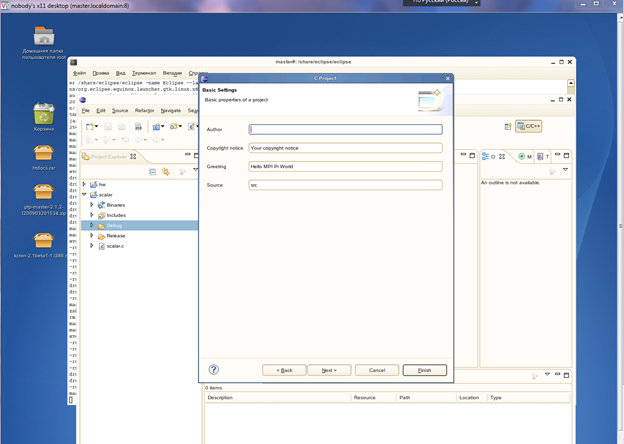
2 step. Next.
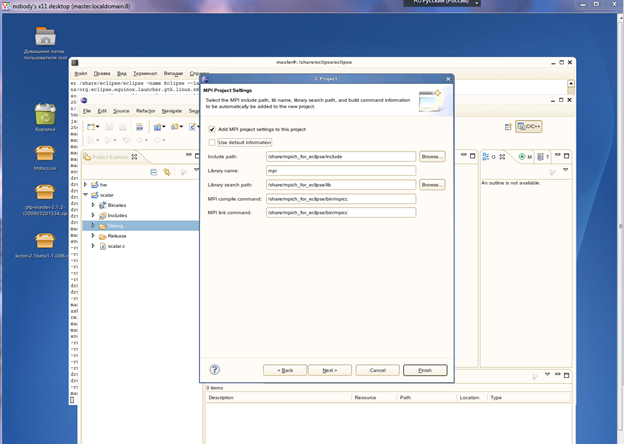
Step 3 of creating the project, on which it is necessary to deselect the Use default information item, leave the rest unchanged. Next, then Finish.
3) Go to the Parallel Runtime perspective.
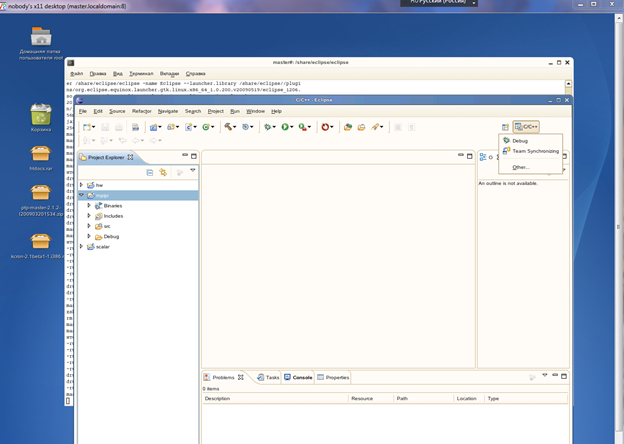
This perspective can be triggered by clicking on Other.
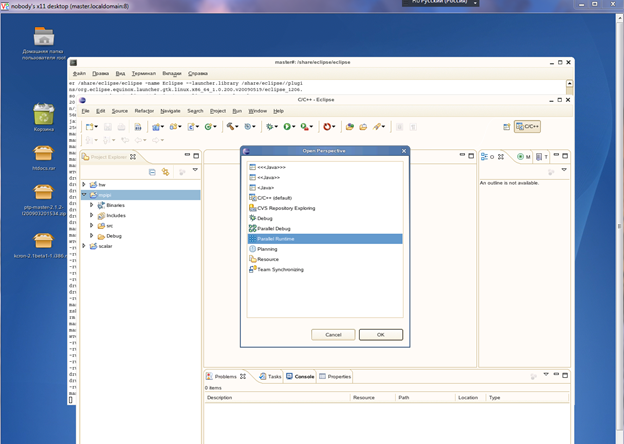
Call the context menu in the Resource Manager field, click Add Resource Manager. In the selection field leave MPICH2, Next, on the next page again Next. On the next page, uncheck Use Default location and enter in the Location / home / mpich / bin field.
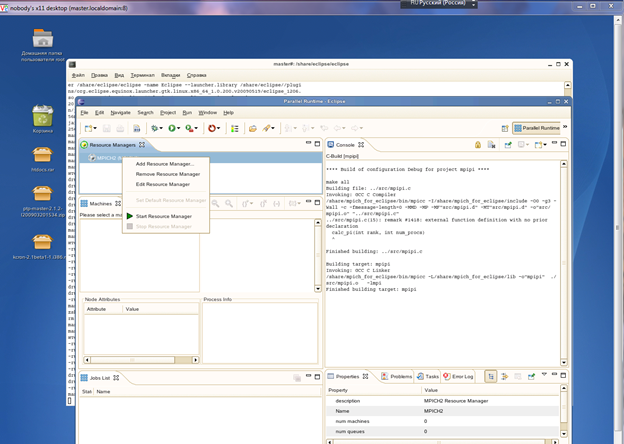
Next, Next again. Finish. 4) Run Resource Manager
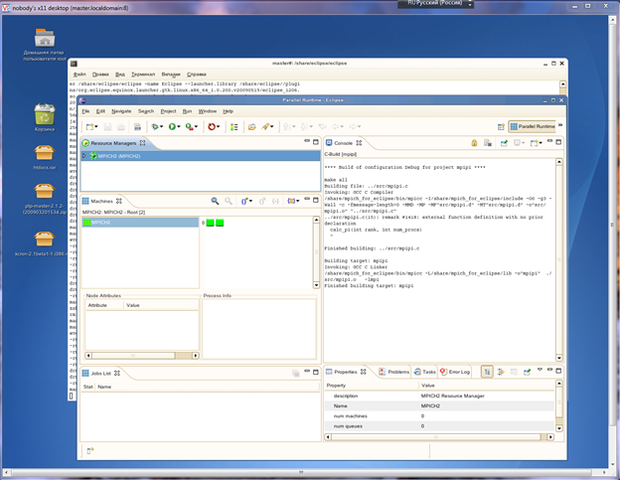
5) Create launch configuration
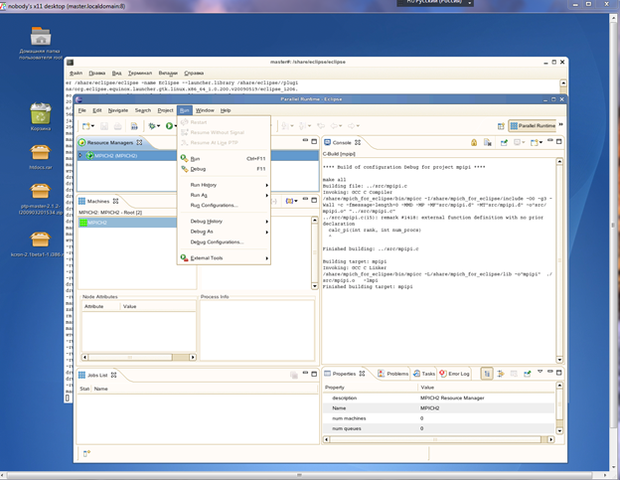
Click on Run Configurations.

Double click on Parallel Applications. Select the required number of cores in Number of processes. In the Application tab, you must specify the project name and the executable file (initially located in Name_of_project => Debug => name_of_project
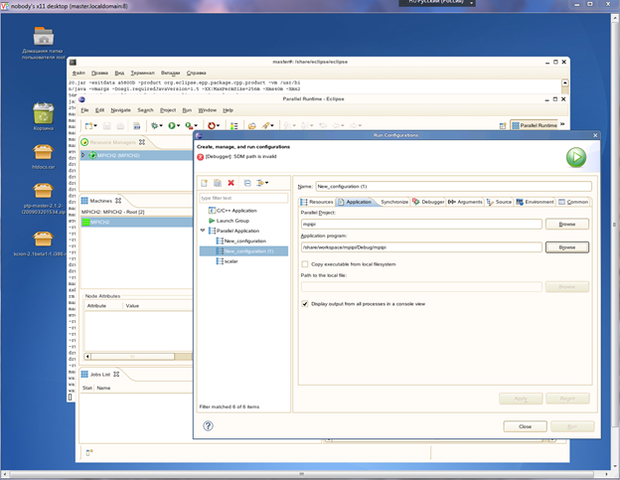
In the Debugger tab, you must specify the path to the Eclipse debugger, SDM. Full path: /distr/soft/eclipse/plugins/org.eclipse.ptp.linux.x86_3.0.1.200912191959/bin/sdm Then click on Run and watch the result.
First of all, we need a graphic session. How to use VNC or how to use a graphical session from Putty is described a lot where we will not stop.
Eclipse main window:
Creating and compiling a project
1) Create a project C')
2) Select the desired type of project
Choose a parallel calculation of the number Pi. If Eclipse requests the MPI configuration data, click Yes, then New and find the directory / home / mpich / include. Then change the MPI Build Command line from mpicc to / home / mpich / bin / mpicc. Click Apply. Warning: this is critical. Otherwise, the compilation will be incorrect. Enter the name of the project. Next.
2 step. Next.
Step 3 of creating the project, on which it is necessary to deselect the Use default information item, leave the rest unchanged. Next, then Finish.
3) Go to the Parallel Runtime perspective.
This perspective can be triggered by clicking on Other.
Call the context menu in the Resource Manager field, click Add Resource Manager. In the selection field leave MPICH2, Next, on the next page again Next. On the next page, uncheck Use Default location and enter in the Location / home / mpich / bin field.
Next, Next again. Finish. 4) Run Resource Manager
5) Create launch configuration
Click on Run Configurations.
Double click on Parallel Applications. Select the required number of cores in Number of processes. In the Application tab, you must specify the project name and the executable file (initially located in Name_of_project => Debug => name_of_project
In the Debugger tab, you must specify the path to the Eclipse debugger, SDM. Full path: /distr/soft/eclipse/plugins/org.eclipse.ptp.linux.x86_3.0.1.200912191959/bin/sdm Then click on Run and watch the result.
Source: https://habr.com/ru/post/99459/
All Articles