Quick steps to display data in PivotViewer and Silverlight

A PivotViewer control has recently been released from the Microsoft LiveLabs team. It is a Silverlight control that allows you to visualize information using DeepZoom technology. If you have not yet seen how it works, I advise you to go to the PivotViewer study department.
Last week I received a letter asking me to show a simpler “how to” example using this tool. In the end, this is a Silverlight control and it requires a specific implementation. And I thought to write down in my notes the creation of the simplest form of data and display using PivotViewer. I say “simple” because you can get a much more complicated option, but I still want to just show the quick implementation steps.
First, remember that the Pivot collections are a combination of image and metadata that describe the image. If you visited the site of the Hard Rock Memorabilia , then this is a simple concept implemented earlier in Silverlight.
Step 1 - Get a PivotViewer
I assume that you already have Visual Studio 2010 and Silverlight 4 Tools. You can download the PivotViewer SDK in the PivotViewer training section of the Silverlight community site. After running the installer, the installation will be done at% ProgramFiles% \ Microsoft SDKs \ Silverlight \ v4.0 \ PivotViewer \ <RELEASE>. In the presence of a folder with examples of source codes, you can freely read them, but most likely you will not need your own actions and other features. My steps below are “PivotViewer 101” for getting simple collections.
')
Step 2 - Get a Pivot Collection Tool
In order to use the control, you must have a data source for the Pivot collection. This is a specific XML data format that PivotViewer understands and is a full-fledged Pivot client. XML schema documentation can be found here - PivotViewer Collection XML Schema . As you can see, it is very simple. You can make it completely with your hands, but why, if there are several tools that will help you!
There are 3 ways to create a source for a collection: command line, code library, and Excel. The first two are common in the case of a dynamic source. These are several options in the form of code for various types of sources, adding metadata and creating dynamic ones on the fly or using JIT collections.
The latter, Excel, is the simplest. The LiveLabs team created a simple add-on to create a collection of data using a familiar interface, without requiring explicitly digging into the collection's schema. Once you install it, you will have a new tab in Excel:
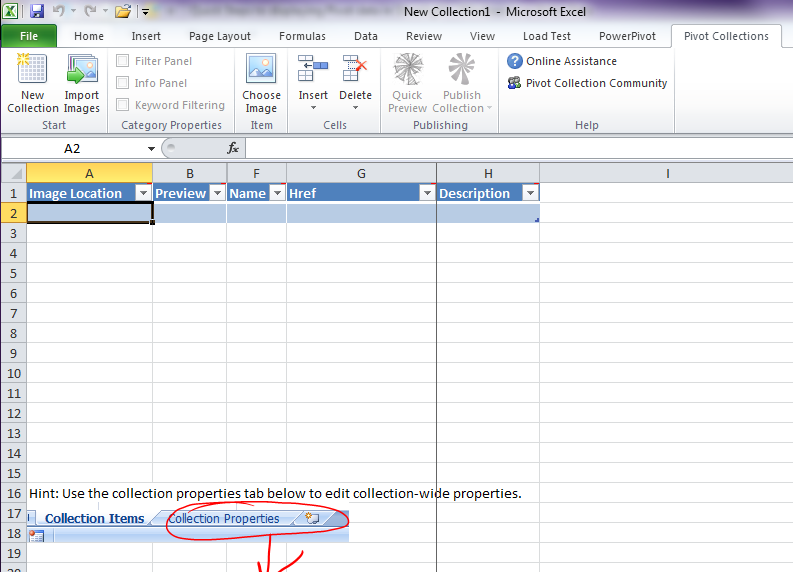
When you click on the New Collection button , you will get a simple table to start building your own data source for the collection.
Step 3 - Starting to create data for the collection
For my example, I am going to use the Bing wallpaper, from the latest Windows 7 theme “Bing's Best”. I already have Excel open and I clicked on New Collection. Now I can use the Import Images feature to load a bunch of images. But I will not do that. I will add pictures selectively using Choose Image.
Next, I want to spread everything in different columns so that the user can filter by category. I used the Inset Column function, and passed it the Category header. These columns were transformed into Facets and, according to the diagram of the definition scheme, they are visually transformed in the control element - filters.
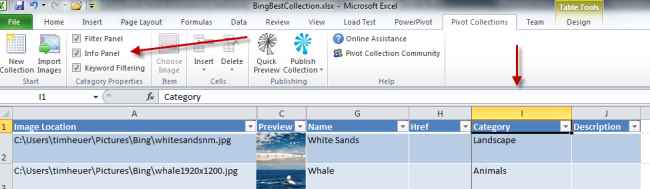
Add data until you are sure that the table displays everything you need. I added just one column, but you can do more. So, I completed the filling and now I’ll select Publish to publish the collection.
The result of the publication will be a CXML file and a folder with your images sliced for DeepZoom. Remember the location of your data.
Step 4 - Create a Silverlight application with the implementation of PivotViewer
Considering that you have an SDK installed, run a new Silverlight project in Visual Studio. After doing the simple steps:
Add a link to Systen.Windows.Pivot, since PivotViewer is in this library.
In MainPage.xaml, add XMLNS declarations for the namespace and control implementation:
< UserControl x:Class ="SilverlightApplication164.MainPage"
xmlns ="http://schemas.microsoft.com/winfx/2006/xaml/presentation"
xmlns:x ="http://schemas.microsoft.com/winfx/2006/xaml"
xmlns:d ="http://schemas.microsoft.com/expression/blend/2008"
xmlns:mc ="http://schemas.openxmlformats.org/markup-compatibility/2006"
xmlns:pivot ="clr-namespace:System.Windows.Pivot;assembly=System.Windows.Pivot"
mc:Ignorable ="d"
d:DesignHeight ="300" d:DesignWidth ="400" >

< Grid x:Name ="LayoutRoot" Background ="White" >
< pivot:PivotViewer x:Name ="MainPivotViewer" />
</ Grid >
</ UserControl >
This is all that needs to be done by the user interface.
The next task I want to do is to make the viewer dynamic. I want the same XAP to use my data collection. In my MainPage.xaml.cs file, in the Loaded event, I use the PivotViewer API and call the LoadCollection () function:
public MainPage()
{
InitializeComponent();
Loaded += new RoutedEventHandler(MainPage_Loaded);
}
void MainPage_Loaded( object sender, RoutedEventArgs e)
{
string collection = App.Current.Host.InitParams[ "collection" ].ToString();
MainPivotViewer.LoadCollection(collection, string .Empty);
}
You probably noticed that I get the value from the Silverligt InitParams model. This allows me to dynamically send collection URLs to an HTML page:
< object data ="data:application/x-silverlight-2," type ="application/x-silverlight-2" width ="100%" height ="100%" >
< param name ="source" value ="ClientBin/SilverlightApplication164.xap" />
< param name ="onError" value ="onSilverlightError" />
< param name ="background" value ="white" />
< param name ="minRuntimeVersion" value ="4.0.50424.0" />
< param name ="autoUpgrade" value ="true" />
< param name ="initParams" value ="collection=URL_TO_CXML" />
< a href ="http://go.microsoft.com/fwlink/?LinkID=149156&v=4.0.50424.0" rel ="nofollow" style ="text-decoration: none" >
< img src ="http://go.microsoft.com/fwlink/?LinkId=161376" __bxsrc ="http://go.microsoft.com/fwlink/?LinkId=161376" alt ="Get Microsoft Silverlight" border ="0" style ="border-style: none" />
</ a >
</ object >
So I can reuse XAP in different places and only change the value of initParams in the <object> tag. I ended up with XAP and now I can post it anywhere.
Step 5 - Publish the result
The final step is publishing. Remember the CXML file and image folder? They should be located somewhere. And here are two very important points:
- If the CXMK file and images are not located next to the XAP file, then cross-domain security policies (clientaccesspolicy.xml) should be specified. Otherwise, nothing will work. PivotViewer makes a network request and this policy is needed by Silverlight for cross-domain situations.
- You may have to add a MIME type binding on your server to run CXML files. I had to (on Windows 2003). I just added a MIME type binding for .cxml and set the text / xml content type , it worked.
As soon as I have done all the necessary actions, I can proceed to placing the XAP on the HTML page and targeting to work with my data collection. As an example, admire the result - Bing's Best Pivot Collection . Notice how the Category column is displayed as a filter on the left. Would do more columns, see more filters. I could also add more metadata and set the HREF parameter to refer to certain data.
You can find more examples of schemas on the GetPivot site:
- http://content.getpivot.com/Collections/dogbreeds/dogbreeds.cxml
- http://content.getpivot.com/Collections/sportsillustrated/sportsillustrated.cxml
- http://content.getpivot.com/Collections/2009nflteams/2009nflteams.cxml
Summarize
Spending just a few minutes on the control, you get the simplest scenario of displaying data. In fact, the creation of a data source for a collection is the most difficult, to determine all the metadata, etc….
You can download my example from here - PivotViewerSimpleSample.zip
Source: https://habr.com/ru/post/99174/
All Articles