NerdDinner. Step 2: Creating a Database
This is the second step of the free NerdDinner tutorial , which shows how to build a small but full-fledged web application using ASP. NET MVC.
We will use a database to store information about Dinner and RSVP for our NerdDinner application.
Below are the steps to create a database using the free version of SQL Server Express, which can be easily installed via the Microsoft Web Platform Installer. All the code we write works under both SQL Server Express and the full version of SQL Server.
')
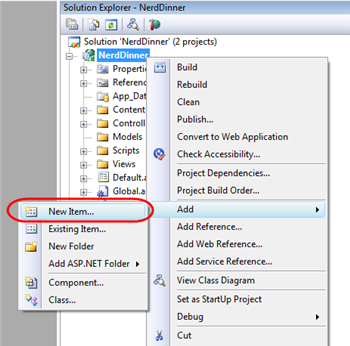
We will start by right clicking on our project in the “Solution Explorer” panel and select Add> New Item:
In the “Add New Item” window, filter by the “Data” category and select “SQL Server Database”:

We will call the database “NerdDinner.mdf”. Visual Studio will ask us whether we want to add this file to the \ App_Data directory, which has already been created with read and write access to the ACL.

We will certainly agree, and our new database will be created and added to Solution Explorer:

Now we have an empty database. Let's create some tables.
To do this, navigate to the tab “Solution Explorer”, which allows us to manage databases and servers. The SQL Server Express database stored in the \ App_Data folder automatically appears in the Server Explorer list. We can use “Connect to Database” to connect to local or remote databases:
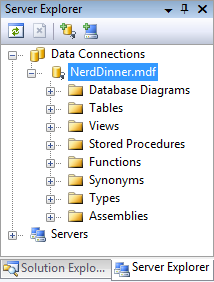
We will add two tables to our NerdDinner database: one for storing dinners, the second for tracking RSVP approvals. We can create a new table by right clicking on the “Tables” folder in our database and selecting the “Add New Table” option:

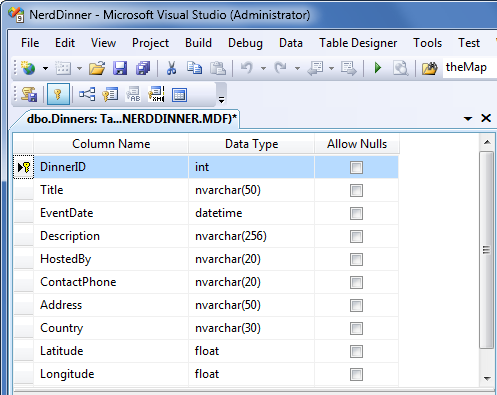
This action will lead to the opening of the constructor for setting the schema of our table. For the table "Dinners" we will add 10 columns:
We want the “DinnerID” column to be a unique primary key for the table. This can be configured by right-clicking on the “DinnerID” column and selecting the “Set Primary Key” item:

In addition, by making DinnerID the primary key, we also want to configure it as an “identity” column, whose value automatically increases with the addition of a new row in the table.
Selecting “DinnerID” and further, using the editor “Column Properties”, set the property “(Is Identity)” - “Yes”. We will use the standard identity settings (start with 1, increase by 1 with each new line in Dinner):

Next, save our table by pressing Ctrl + S or File> Save . All we need to do is enter the name of the new table - “Dinners”:

The new Dinners table is ready and is now displayed in the Tables list in the Server Explorer of our database.
Let's do the same steps to create the “RSVP” table. This table will consist of 3 columns. Set the RsvpID column as the primary key, and also make an indetity column of it:

Save the table with the name "RSVP".
We already have two tables in our database. Our final design step is to create a one-to-many relationship between two tables so that we can link each row of the Dinner table with 0 or more rows of the RSVP table. We will do this by setting the “DinnerID” column of the RSVP table through a foreign key with the “DinnerID” column of the “Dinners” table.
To do this, open the RSVP table in the table designer by double-clicking in Server Explorer. Next, select the “DinnerID” column and the “Relationships ...” item with the right button:

A window appears that is used to set up links between the tables:

Click on “Add” and add a new link. After adding the link, we will open the "Tables and Column Specification" tree branch in the right part of the window and click on the "..." button:

In the window that appears, we will be able to specify a table and a column that participates in the link, also allowing you to set a name for it:

As a result, each row of the RSVP table will be associated with a row of the Dinner table. SQL Server will maintain referential integrity for us and prevent us from adding a new RSVP row if it does not point to the existing row of the Dinner table. It will also prevent the deletion of a row from the Dinner table if there are rows referring to it from the RSVP table.
Let's finish this step by adding data to the Dinners table. To do this, right-click on the table in Server Explorer and select “Show Table Data”:

We will add a few lines for future use as soon as we start implementing the application:

We have finished creating our database. Now let's create model classes that can be used for queries and updates.
We will use a database to store information about Dinner and RSVP for our NerdDinner application.
Below are the steps to create a database using the free version of SQL Server Express, which can be easily installed via the Microsoft Web Platform Installer. All the code we write works under both SQL Server Express and the full version of SQL Server.
')
Creating a new SQL Server Express database
We will start by right clicking on our project in the “Solution Explorer” panel and select Add> New Item:
In the “Add New Item” window, filter by the “Data” category and select “SQL Server Database”:
We will call the database “NerdDinner.mdf”. Visual Studio will ask us whether we want to add this file to the \ App_Data directory, which has already been created with read and write access to the ACL.
We will certainly agree, and our new database will be created and added to Solution Explorer:
Create tables in the database
Now we have an empty database. Let's create some tables.
To do this, navigate to the tab “Solution Explorer”, which allows us to manage databases and servers. The SQL Server Express database stored in the \ App_Data folder automatically appears in the Server Explorer list. We can use “Connect to Database” to connect to local or remote databases:
We will add two tables to our NerdDinner database: one for storing dinners, the second for tracking RSVP approvals. We can create a new table by right clicking on the “Tables” folder in our database and selecting the “Add New Table” option:
This action will lead to the opening of the constructor for setting the schema of our table. For the table "Dinners" we will add 10 columns:
We want the “DinnerID” column to be a unique primary key for the table. This can be configured by right-clicking on the “DinnerID” column and selecting the “Set Primary Key” item:
In addition, by making DinnerID the primary key, we also want to configure it as an “identity” column, whose value automatically increases with the addition of a new row in the table.
Selecting “DinnerID” and further, using the editor “Column Properties”, set the property “(Is Identity)” - “Yes”. We will use the standard identity settings (start with 1, increase by 1 with each new line in Dinner):
Next, save our table by pressing Ctrl + S or File> Save . All we need to do is enter the name of the new table - “Dinners”:
The new Dinners table is ready and is now displayed in the Tables list in the Server Explorer of our database.
Let's do the same steps to create the “RSVP” table. This table will consist of 3 columns. Set the RsvpID column as the primary key, and also make an indetity column of it:
Save the table with the name "RSVP".
Configuring foreign keys between tables
We already have two tables in our database. Our final design step is to create a one-to-many relationship between two tables so that we can link each row of the Dinner table with 0 or more rows of the RSVP table. We will do this by setting the “DinnerID” column of the RSVP table through a foreign key with the “DinnerID” column of the “Dinners” table.
To do this, open the RSVP table in the table designer by double-clicking in Server Explorer. Next, select the “DinnerID” column and the “Relationships ...” item with the right button:
A window appears that is used to set up links between the tables:
Click on “Add” and add a new link. After adding the link, we will open the "Tables and Column Specification" tree branch in the right part of the window and click on the "..." button:
In the window that appears, we will be able to specify a table and a column that participates in the link, also allowing you to set a name for it:
As a result, each row of the RSVP table will be associated with a row of the Dinner table. SQL Server will maintain referential integrity for us and prevent us from adding a new RSVP row if it does not point to the existing row of the Dinner table. It will also prevent the deletion of a row from the Dinner table if there are rows referring to it from the RSVP table.
Filling our tables with data
Let's finish this step by adding data to the Dinners table. To do this, right-click on the table in Server Explorer and select “Show Table Data”:
We will add a few lines for future use as soon as we start implementing the application:
Next step
We have finished creating our database. Now let's create model classes that can be used for queries and updates.
Source: https://habr.com/ru/post/98976/
All Articles