Use Avocode for site layout. Overview for beginners. Bonus - register a 30-day trial period
As we all know, the layout of the site is actually the coding of the design layout, and in order to make us more comfortable we use various programs for working with the layouts. Photoshop? Sketch? Zeplin? Yes, these are all excellent tools, but today we will talk about the product with which it was really nice to do the layout of the site. It's about Avocode.

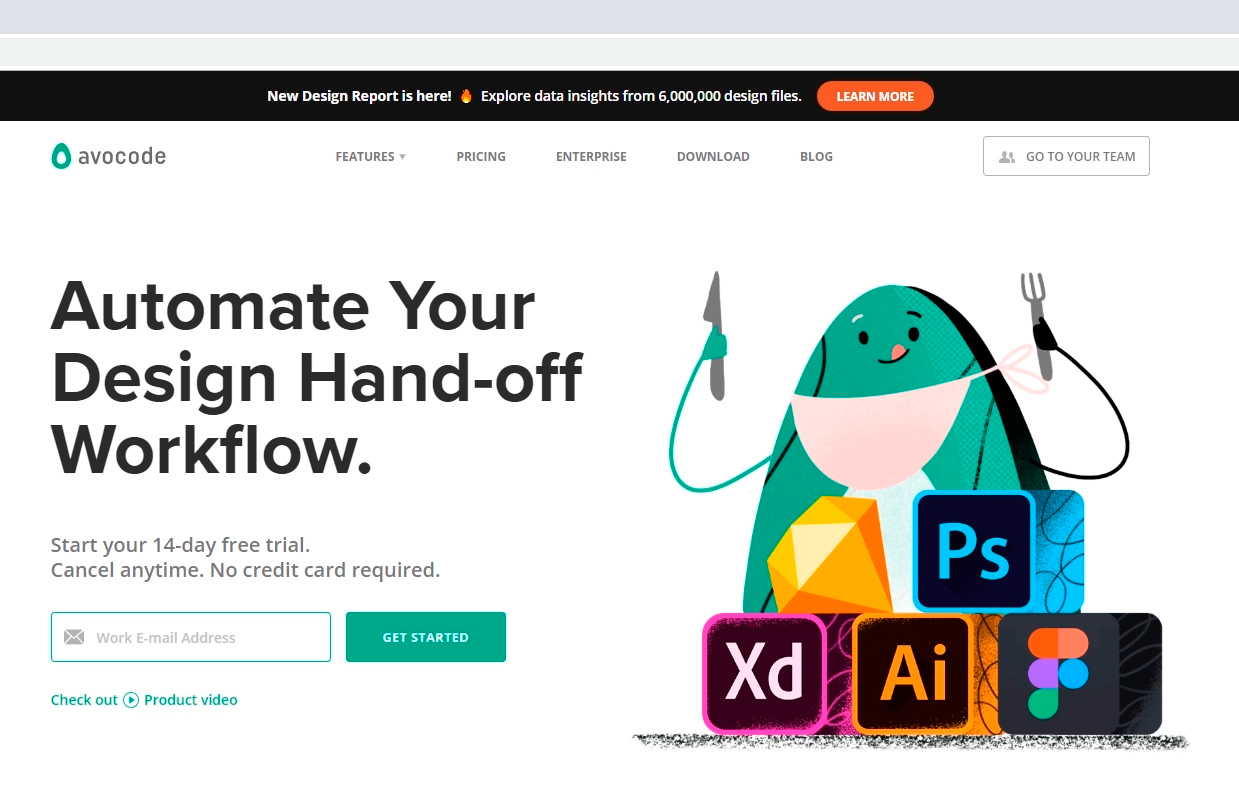
Turning to Avocode website, we are immediately offered to issue a free 14-day period, but do not rush, I will show you how to register a 30-day cool tariff plan. First things first.
')
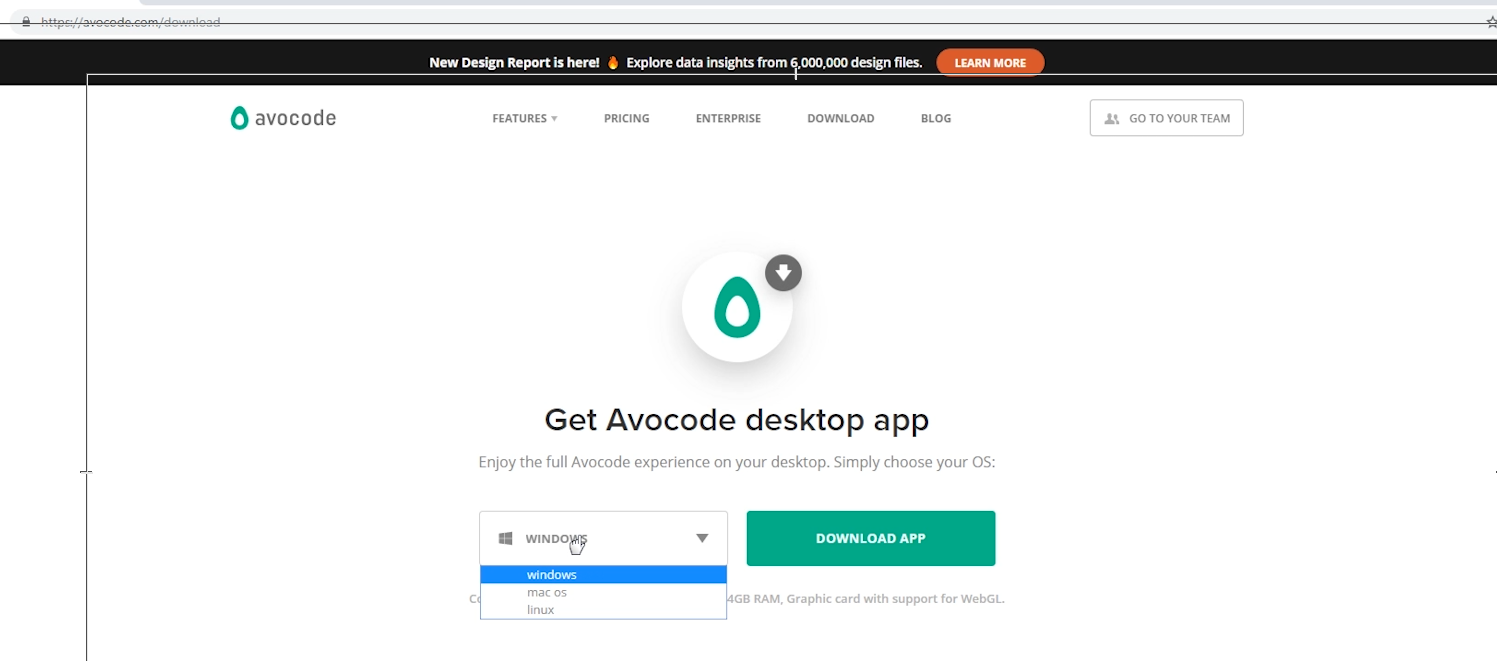
You can work right here on the site, but I recommend downloading the program on the computer. Find the download tab, select the system, download.
Having opened the program, we must log in, but we are not registered in the system yet. As said above, you need to do it as profitably as possible.
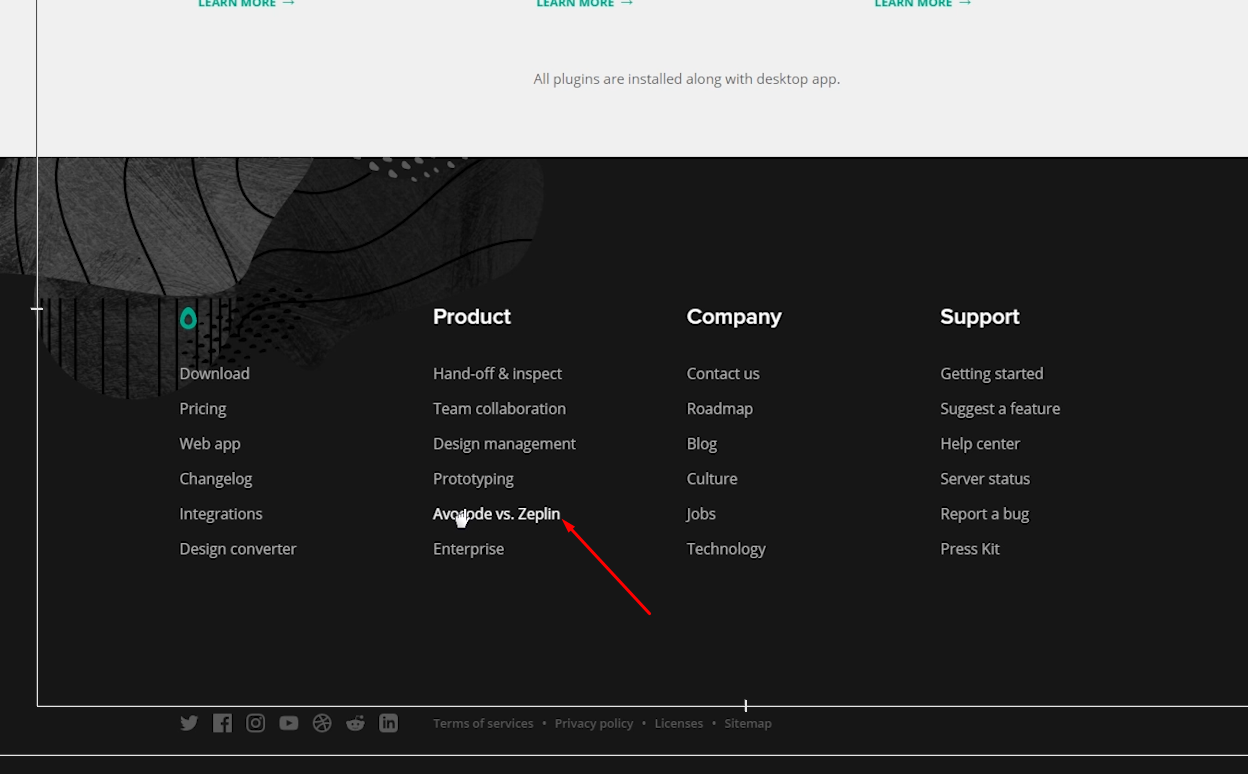
So, back to the site. Scroll down and look for the link Avocode vs. Zeplin and click on it. Zeplin is an alternative to Avocode.
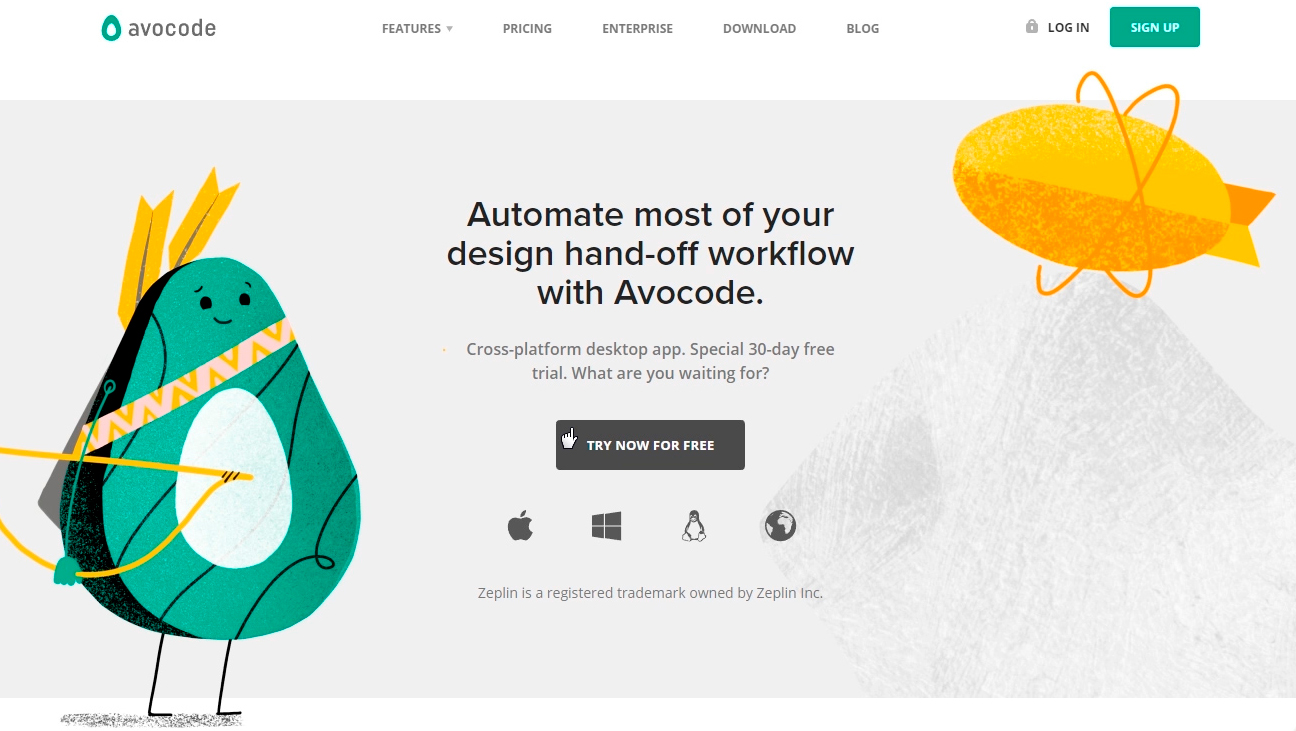
We are interested in the very bottom of the page, we are looking for this block. It says that you can get avacode for 30 days for this link, and we are asked “What are we waiting for?” And the truth is what? Discarding all doubts, click on the button and fill out the form.
And then I immediately hint to you that if you do not have time to enjoy the program for a month, then this procedure can be repeated by registering another email. Obviously, these actions can be repeated endlessly). But personally, I pay for the avocode and advise you. On the other hand, while you are new you can and save. You decide.
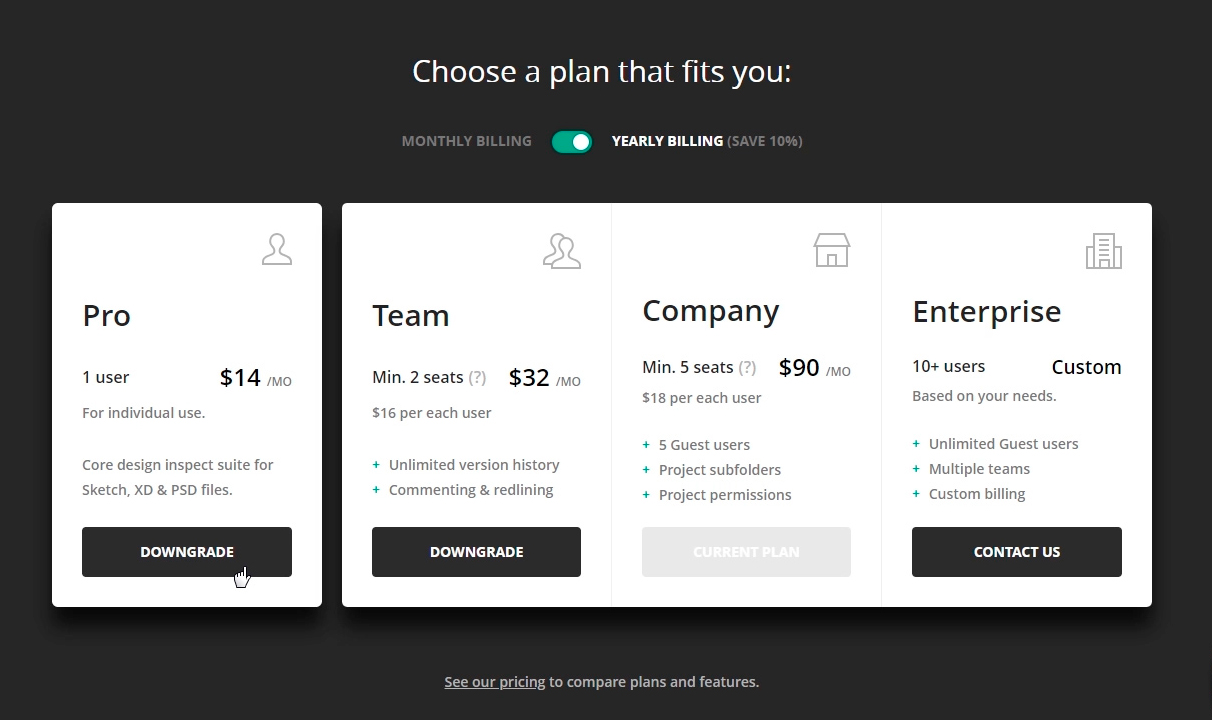
We confirm our email by clicking on the link in the letter and go to the application. Immediately go to the menu and click on your nickname, then to the billing tab, we see that we have 30 ball days, and even a steep expensive Company tariff plan, it costs $ 100 a month by the way. We are happy. The main feature of this tariff is that it is designed for 5 people, that is, you can invite four more idlers to your team. You can do this in the members tab. Read more about the tariffs on the program website.
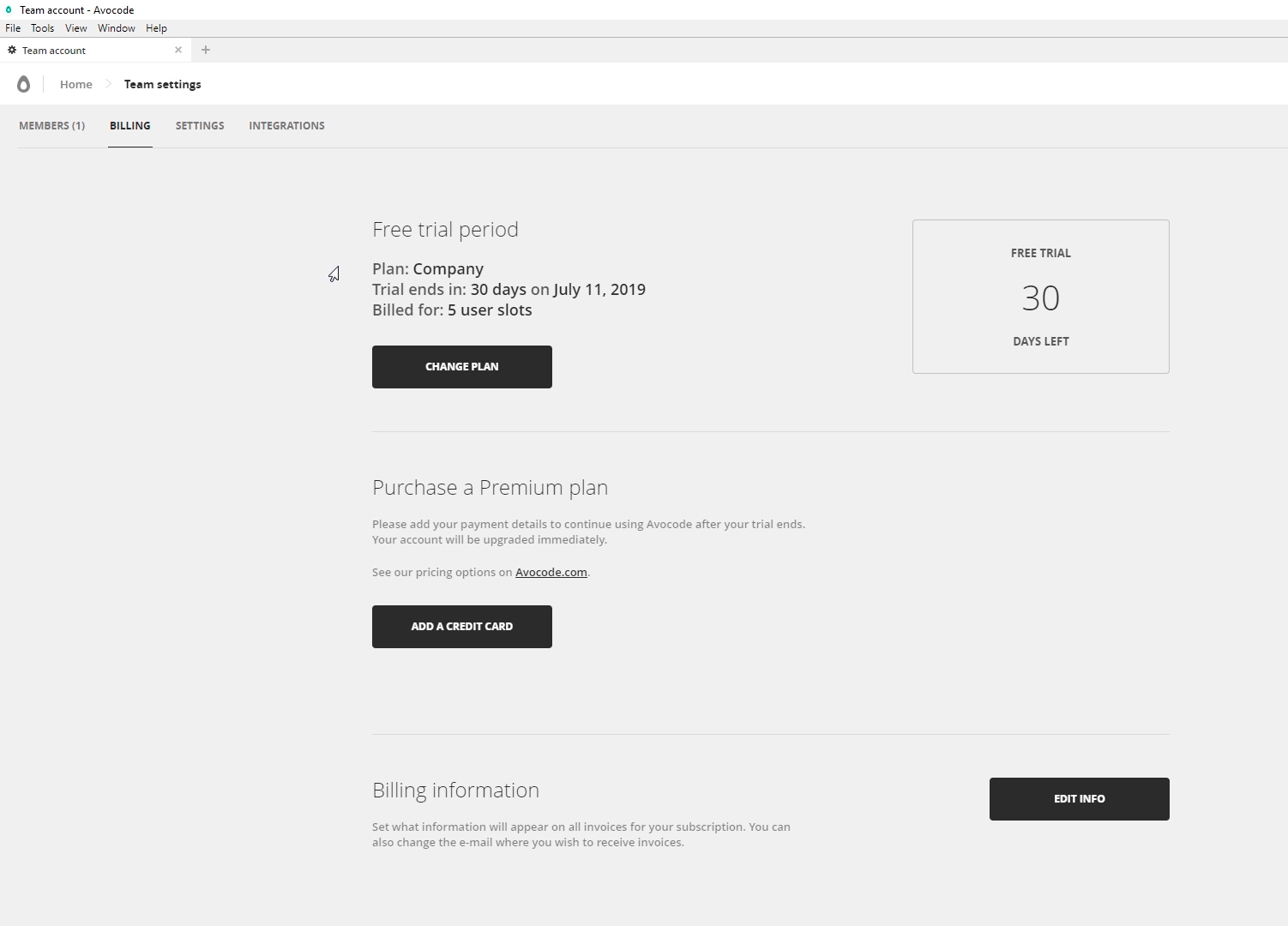
By the way, if you decide to pay for the program, then do not forget to change the tariff plan for a simpler one. We go in the billing - change plan and now the cheapest is fine. After that, you need to add a credit card and pay off 168 greens per year. But again, do not rush, after a 30-day period Avocode usually offers to extend the familiarization of $ 1 to the same email. At least it works today.
So what do we get for this money? And why Avocode is so cool. It's time to see what he can do.
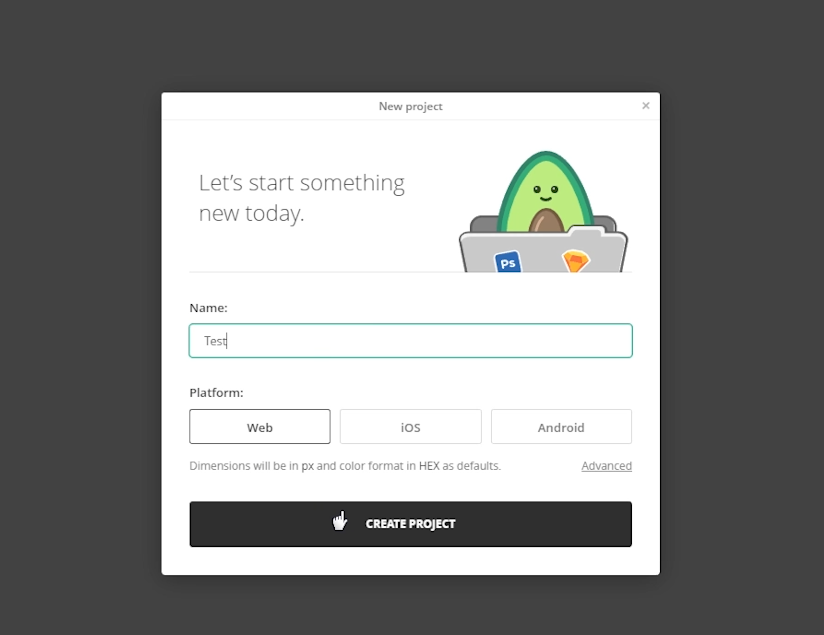
Let's create our test project. Click New Project .
So, one of the main advantages of the avocode for the coder is the supported formats without any plug-ins. And this, for a moment, Photoshop (PSD) , Sketch , Adobe XD and Illustrator . As well as partial integration with Figma . Well, what is not a universal combine?
In addition to the fact that files can be loaded directly, the avocode can be synchronized through plug-ins in the graphic editors themselves, as well as using the dropbox . I somehow got used to load files.
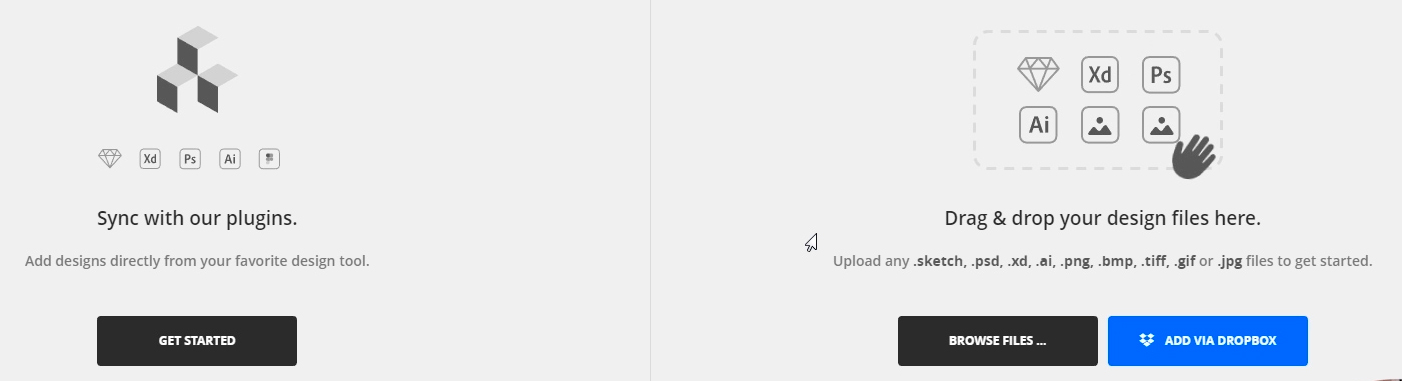
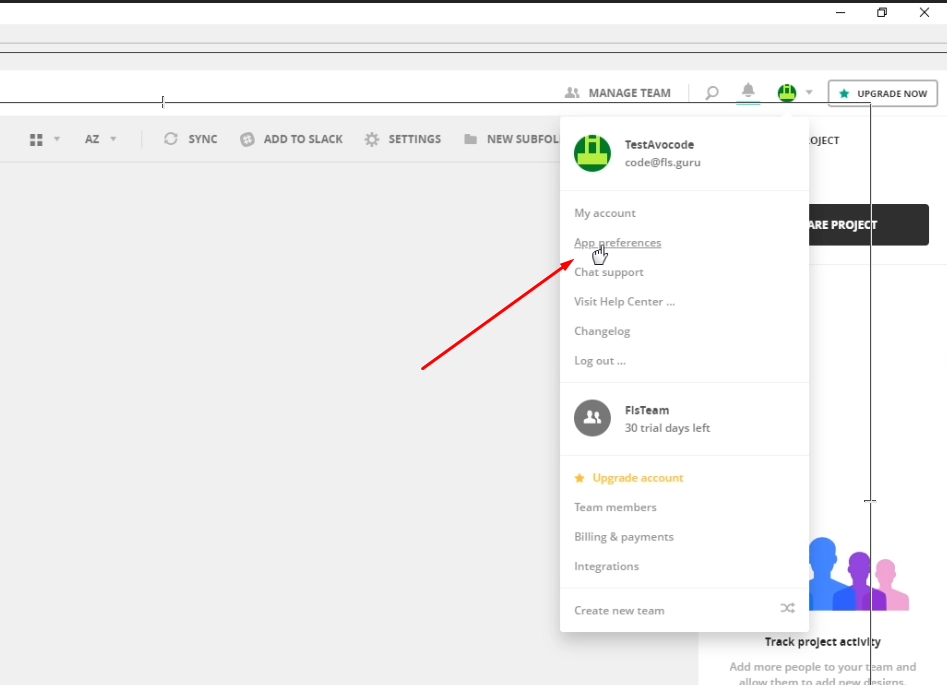
So, add any layout, for this you can either drag the file to this area and select it on the disk. After downloading, we can open the file and talk about the program interface, but I'll start with the general settings. Click our Avatar - App preferences.
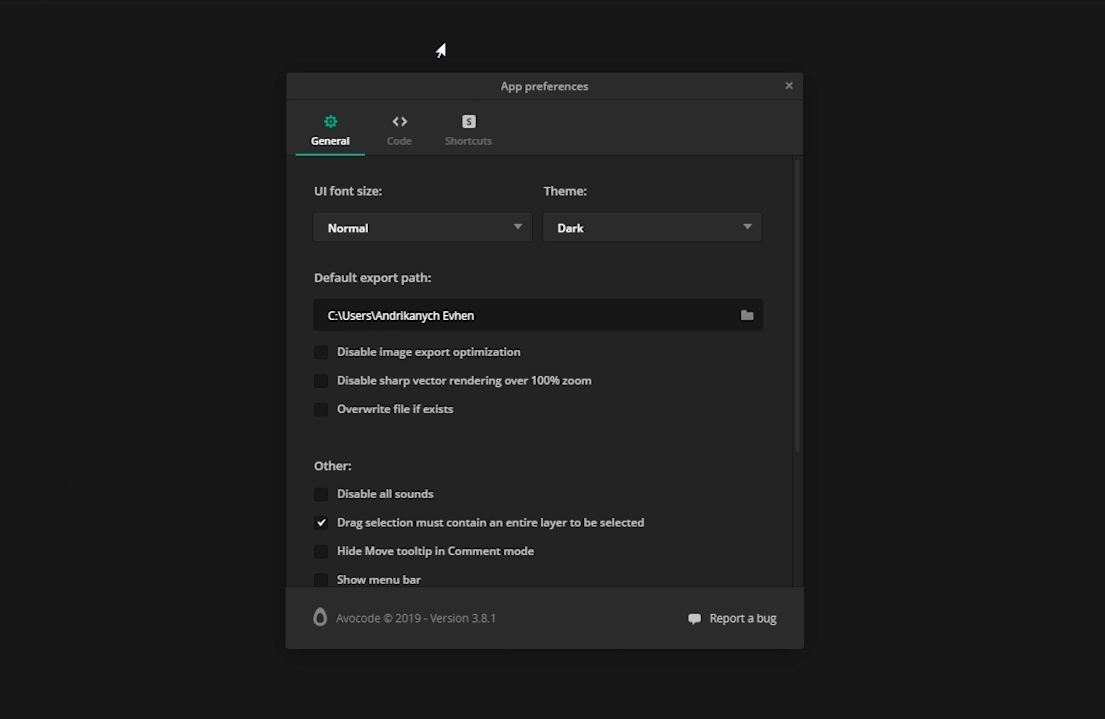
The first thing I do is switch to the dark side of Theme Dark. Next, I can select the folder for exporting images by default, as well as turn off image optimization, disable anti-aliasing when zooming the layout, enable overwriting of the exported image. And a number of secondary settings that I do not use. In fact, here I just turn on the dark theme, leave everything else as it is.
To work with the layout, we need the Inspect tab. On the left, we see something like layers like in Photoshop, you can hide them and show them by clicking on the eye. Still to the left we see the toolbar and I use all two - this is a ruler and a pipette. That's why:
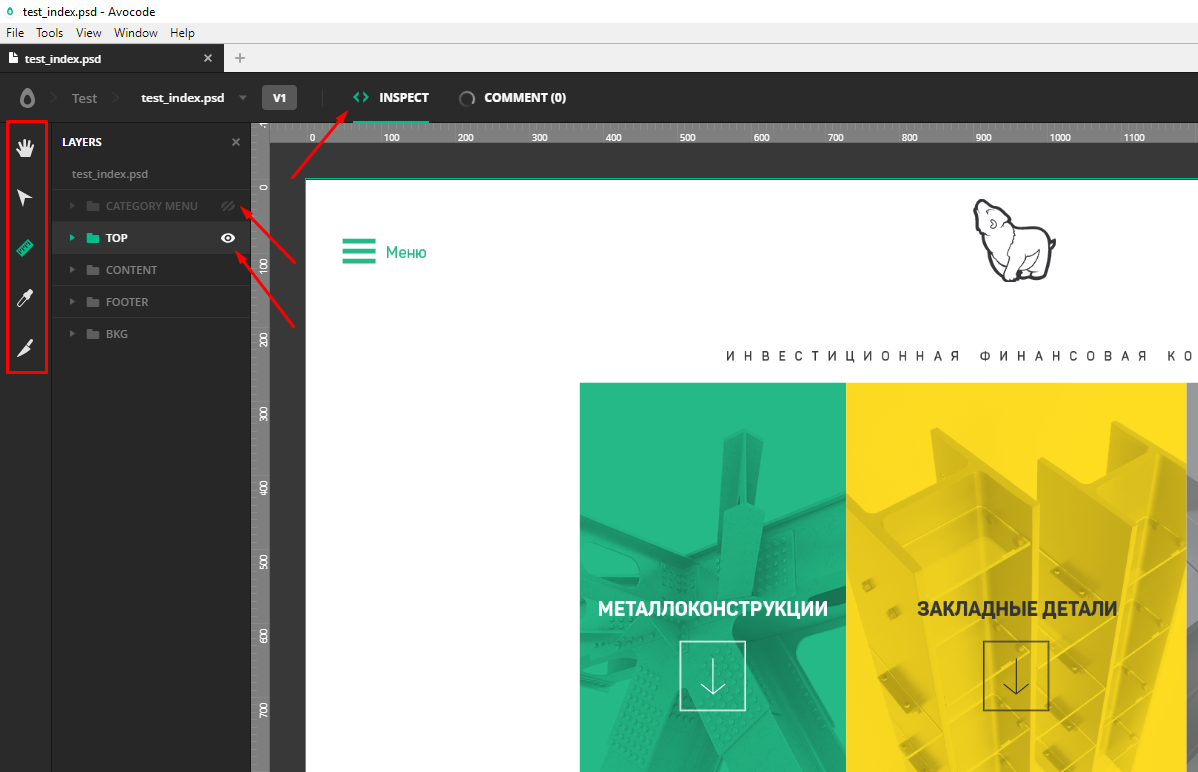
Hand (hand) - allows us to move the layout holding the right mouse button. But the ruler is able the same with the clamped space.
Arrow (select selection) - allows you to select multiple layers. But the ruler knows exactly the same thing.
Knife (slice) - can select an arbitrary area and then export the image, but somehow I didn’t use it like that.
A pipette is sometimes needed - it copies the color code of the selected area.
And finally, the ruler . Selecting this tool starts the magic.
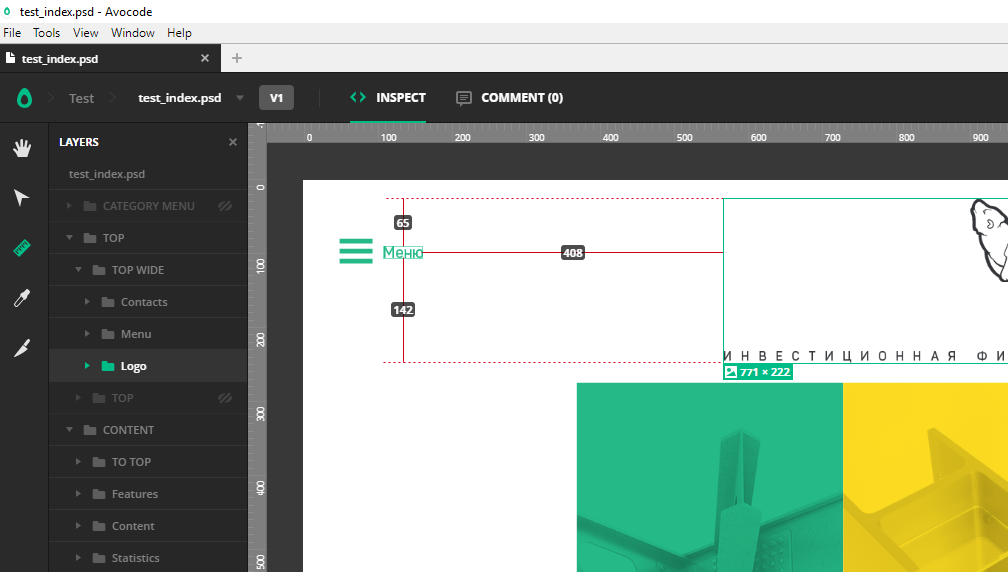
For example, I need to know the size of the object, as well as the distance from it to other elements.
To do this, I simply click on the object, I immediately see its dimensions in pixels, when I hover over neighboring objects with a mouse, I immediately see different distances, which is incredibly convenient during layout.
If for some reason the distances do not appear, we can measure them manually, holding the left mouse button and stretching between the desired objects. The height and width of the selected area is displayed on the right in the information window.
Smoothly go to the right side of the program. To begin with, click on the topmost layer of our layers, in fact, the file name. On the right we will see:
Picture of the entire layout, its size. The ability to upload a screenshot of the layout, which is convenient for the portfolio. General information: what, where, when. Next, a list of all the colors used in the layout, which is useful, but even more useful is the list of all used fonts in the layout.
Fonts are usually provided by the designer along with the layout, but this is not always the case, so this list will help us find the right fonts on our own.
Further, for more advanced users, it is possible to customize various variables for themselves.
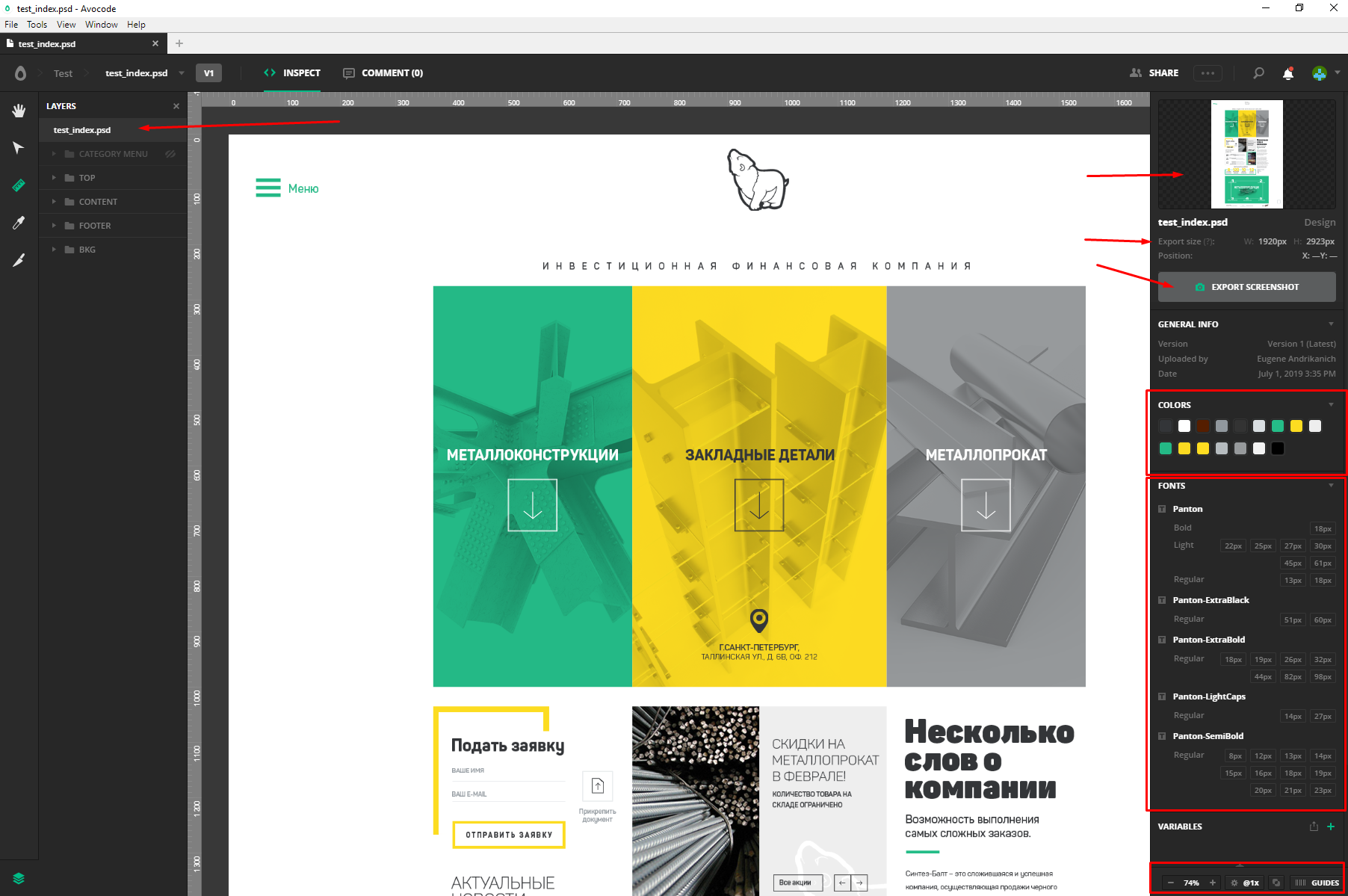
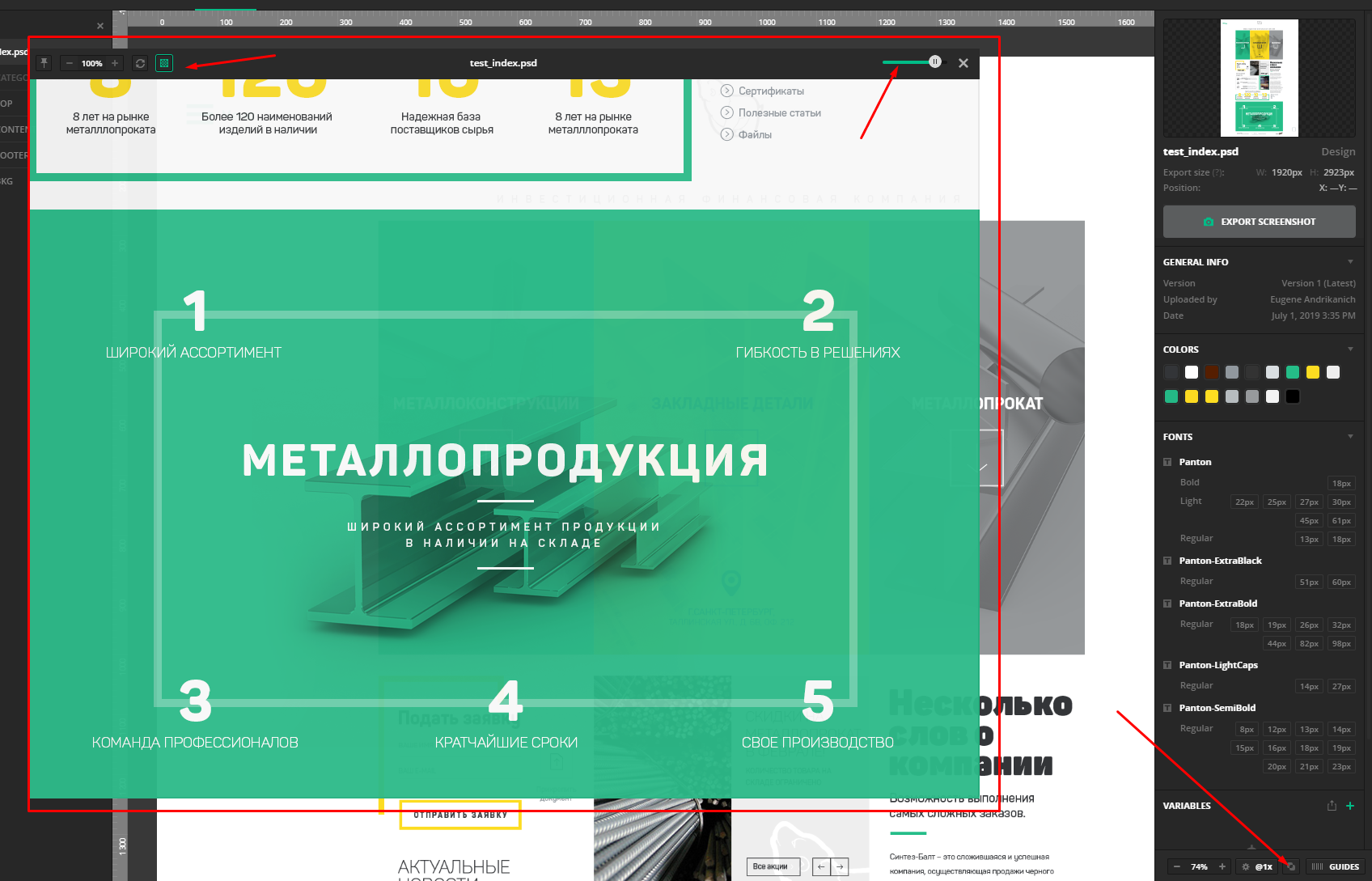
The bottom bar, though small in size, is no less useful. Here you have the scale of the layout. You can also change it by holding the control and turning the mouse wheel. Next we have a tool to check the layout on Pixel Perfect, that is, a pixel to a pixel. With it, we can impose a translucent layout on the layout and compare sizes and indents. The tool has a number of useful settings, such as transparency and disabling the background of the layout.
The last point is Guides guides. Here you can enable designer's guides or add your own. Between them, you can also measure the distance.

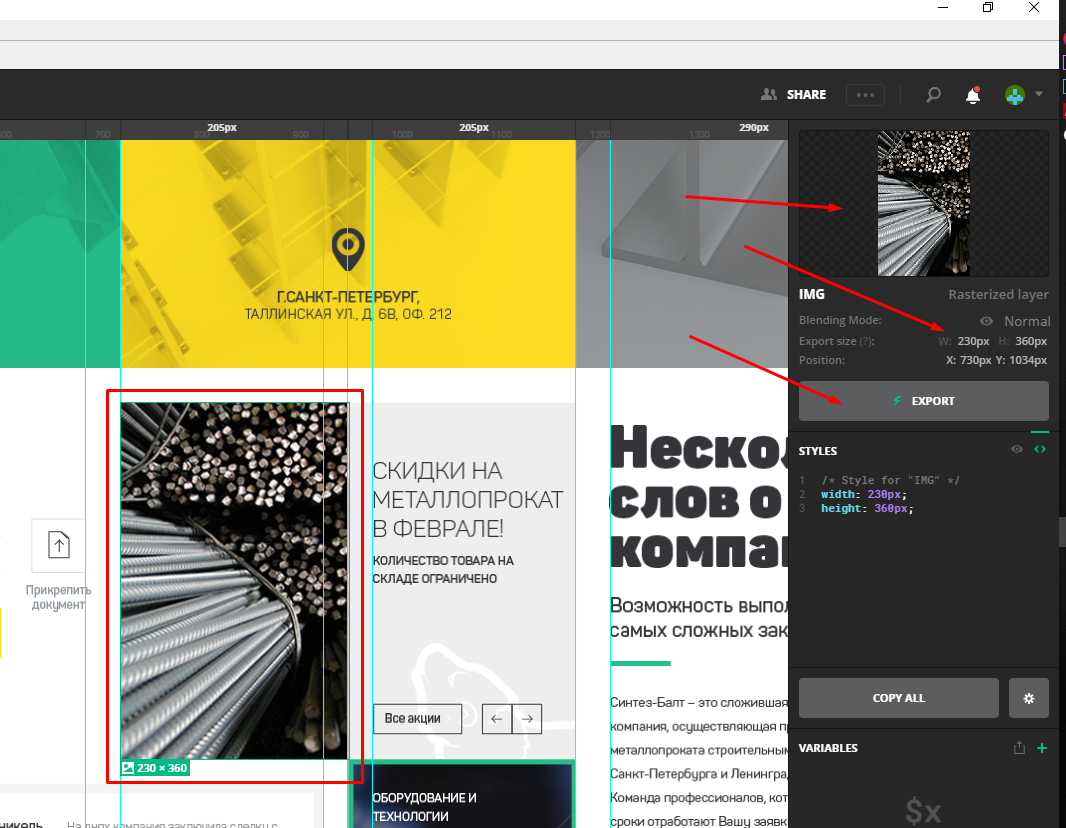
So, the panel for the entire layout was disassembled, now let's see what the panel offers for a separate object. Click, for example, on the picture. On the right, we see the selected object, its size and the button for exporting the image.
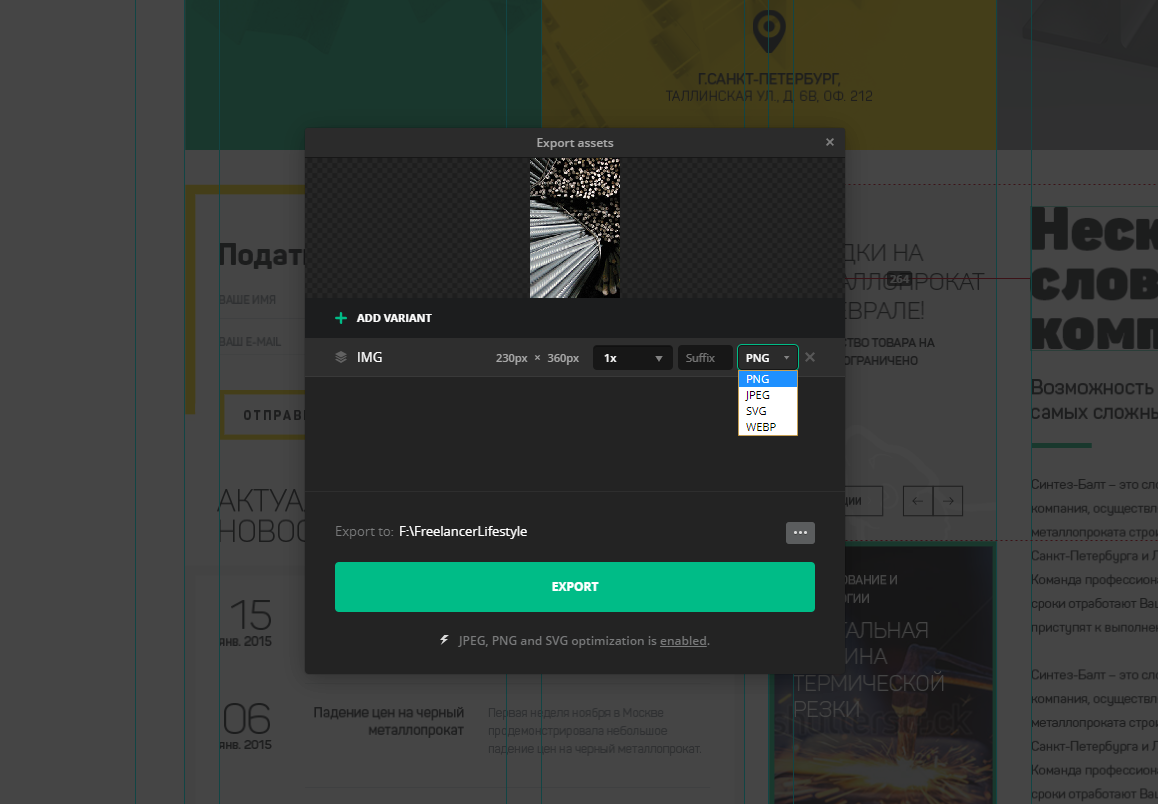
Click. Here we can set the file name, scale, suffix and PNG JPEG SVG and WEBP format. Below you can select the folder where the picture will be saved. You can upload several pictures into one file by selecting them with the mouse or by clicking on the desired ones with the clamped shift . You can also click on the image with the left mouse button and select the desired item.
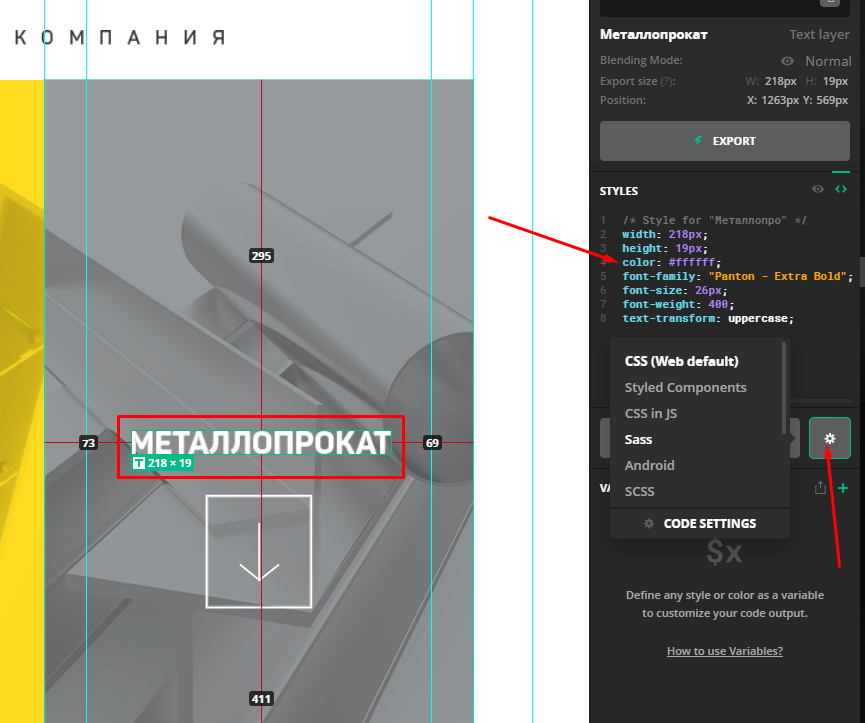
Now the most interesting is the text and other design elements. Click for example on the text. On the right in the Styles window we see the holy of holies - all the finished CSS code for our element! We can copy everything, copy only one parameter by clicking on it, and also customize the look and type of our code. And in order to copy our text, simply double-click on it with the mouse.
One avocode can almost completely replace the native graphic editors for each of the formats. With this program, working with the layout brings one pleasure and saves a lot of time!
Based on the issue of “ Avocode for the layout designer. How to use Avocode 30 days for free ”, from the series“ Programs and tools for website layout ”, on the YouTube channel“ Freelancer for Life ”.
Turning to Avocode website, we are immediately offered to issue a free 14-day period, but do not rush, I will show you how to register a 30-day cool tariff plan. First things first.
')
You can work right here on the site, but I recommend downloading the program on the computer. Find the download tab, select the system, download.
Having opened the program, we must log in, but we are not registered in the system yet. As said above, you need to do it as profitably as possible.
Registration of a trial period of 30 days.
So, back to the site. Scroll down and look for the link Avocode vs. Zeplin and click on it. Zeplin is an alternative to Avocode.
We are interested in the very bottom of the page, we are looking for this block. It says that you can get avacode for 30 days for this link, and we are asked “What are we waiting for?” And the truth is what? Discarding all doubts, click on the button and fill out the form.
And then I immediately hint to you that if you do not have time to enjoy the program for a month, then this procedure can be repeated by registering another email. Obviously, these actions can be repeated endlessly). But personally, I pay for the avocode and advise you. On the other hand, while you are new you can and save. You decide.
We confirm our email by clicking on the link in the letter and go to the application. Immediately go to the menu and click on your nickname, then to the billing tab, we see that we have 30 ball days, and even a steep expensive Company tariff plan, it costs $ 100 a month by the way. We are happy. The main feature of this tariff is that it is designed for 5 people, that is, you can invite four more idlers to your team. You can do this in the members tab. Read more about the tariffs on the program website.
By the way, if you decide to pay for the program, then do not forget to change the tariff plan for a simpler one. We go in the billing - change plan and now the cheapest is fine. After that, you need to add a credit card and pay off 168 greens per year. But again, do not rush, after a 30-day period Avocode usually offers to extend the familiarization of $ 1 to the same email. At least it works today.
So what do we get for this money? And why Avocode is so cool. It's time to see what he can do.
Work with the program
Let's create our test project. Click New Project .
So, one of the main advantages of the avocode for the coder is the supported formats without any plug-ins. And this, for a moment, Photoshop (PSD) , Sketch , Adobe XD and Illustrator . As well as partial integration with Figma . Well, what is not a universal combine?
In addition to the fact that files can be loaded directly, the avocode can be synchronized through plug-ins in the graphic editors themselves, as well as using the dropbox . I somehow got used to load files.
So, add any layout, for this you can either drag the file to this area and select it on the disk. After downloading, we can open the file and talk about the program interface, but I'll start with the general settings. Click our Avatar - App preferences.
The first thing I do is switch to the dark side of Theme Dark. Next, I can select the folder for exporting images by default, as well as turn off image optimization, disable anti-aliasing when zooming the layout, enable overwriting of the exported image. And a number of secondary settings that I do not use. In fact, here I just turn on the dark theme, leave everything else as it is.
Program interface
To work with the layout, we need the Inspect tab. On the left, we see something like layers like in Photoshop, you can hide them and show them by clicking on the eye. Still to the left we see the toolbar and I use all two - this is a ruler and a pipette. That's why:
Hand (hand) - allows us to move the layout holding the right mouse button. But the ruler is able the same with the clamped space.
Arrow (select selection) - allows you to select multiple layers. But the ruler knows exactly the same thing.
Knife (slice) - can select an arbitrary area and then export the image, but somehow I didn’t use it like that.
A pipette is sometimes needed - it copies the color code of the selected area.
And finally, the ruler . Selecting this tool starts the magic.
For example, I need to know the size of the object, as well as the distance from it to other elements.
To do this, I simply click on the object, I immediately see its dimensions in pixels, when I hover over neighboring objects with a mouse, I immediately see different distances, which is incredibly convenient during layout.
If for some reason the distances do not appear, we can measure them manually, holding the left mouse button and stretching between the desired objects. The height and width of the selected area is displayed on the right in the information window.
Smoothly go to the right side of the program. To begin with, click on the topmost layer of our layers, in fact, the file name. On the right we will see:
Picture of the entire layout, its size. The ability to upload a screenshot of the layout, which is convenient for the portfolio. General information: what, where, when. Next, a list of all the colors used in the layout, which is useful, but even more useful is the list of all used fonts in the layout.
Fonts are usually provided by the designer along with the layout, but this is not always the case, so this list will help us find the right fonts on our own.
Further, for more advanced users, it is possible to customize various variables for themselves.
The bottom bar, though small in size, is no less useful. Here you have the scale of the layout. You can also change it by holding the control and turning the mouse wheel. Next we have a tool to check the layout on Pixel Perfect, that is, a pixel to a pixel. With it, we can impose a translucent layout on the layout and compare sizes and indents. The tool has a number of useful settings, such as transparency and disabling the background of the layout.
The last point is Guides guides. Here you can enable designer's guides or add your own. Between them, you can also measure the distance.
So, the panel for the entire layout was disassembled, now let's see what the panel offers for a separate object. Click, for example, on the picture. On the right, we see the selected object, its size and the button for exporting the image.
Click. Here we can set the file name, scale, suffix and PNG JPEG SVG and WEBP format. Below you can select the folder where the picture will be saved. You can upload several pictures into one file by selecting them with the mouse or by clicking on the desired ones with the clamped shift . You can also click on the image with the left mouse button and select the desired item.
Now the most interesting is the text and other design elements. Click for example on the text. On the right in the Styles window we see the holy of holies - all the finished CSS code for our element! We can copy everything, copy only one parameter by clicking on it, and also customize the look and type of our code. And in order to copy our text, simply double-click on it with the mouse.
One avocode can almost completely replace the native graphic editors for each of the formats. With this program, working with the layout brings one pleasure and saves a lot of time!
Based on the issue of “ Avocode for the layout designer. How to use Avocode 30 days for free ”, from the series“ Programs and tools for website layout ”, on the YouTube channel“ Freelancer for Life ”.
Video version of the article:
Source: https://habr.com/ru/post/458378/
All Articles