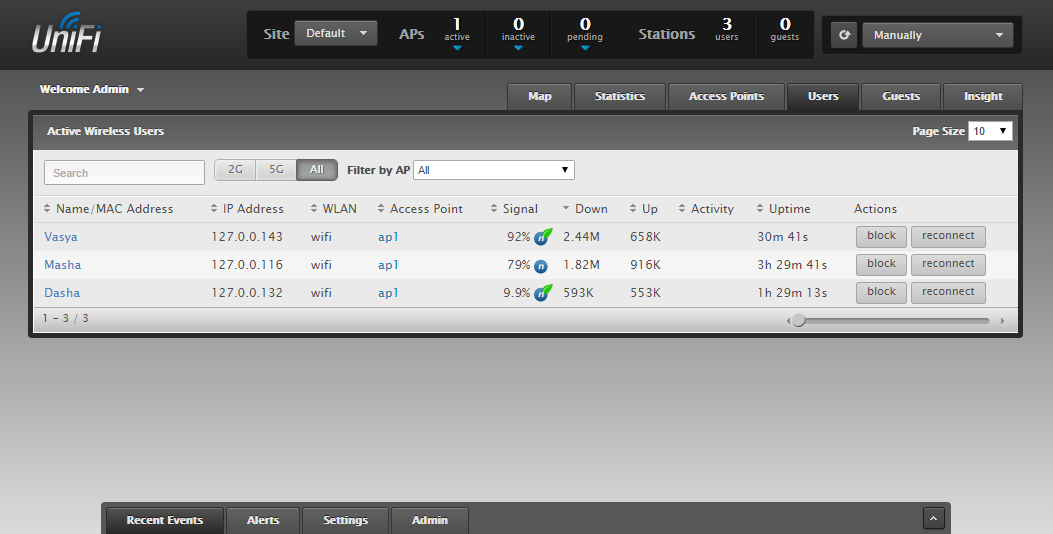
UniFi Controller, displaying RADIUS logins
Some time ago I read an article (on Habré, but could not be re-found), which described how to configure the display of logins of authorized RADIUS users in the web control panel of the controller installed on a * nix system. I perceived that this particular solution is only suitable for * .nix, therefore, having inspired, I decided to implement this on Windows + NPS (aka RADIUS server).
Also under the cut there is information on how to transfer data from Windows events to the task scheduler.

')
I don’t provide information on how to configure APs and NPS, you can use the publication “Authentication of wireless clients using Active Directory accounts” . I want to note that in my case NPS server is used only for Wi-Fi authorization, and Unifi Controller is on the same machine as it. Below in the text there will be notes on what to do if your configuration is different.
Let's proceed directly to the implementation of our plans. First of all, we need to “catch” the moment of successful authorization of the user and get key information, by which I mean the MAC address of the client device and the login of the authorized user. To do this, you need to create a task in the Windows scheduler, the trigger for which will be the event of successful authorization of the NPS server (Log: "Security", source: "Microsoft Windows security auditing.", Event code: 6272). We specify our future CMD in actions (we will return to it later).
Using the Windows GUI, you cannot configure data transfer from an event to a script, but no problem, export our task to XML and open it in a text editor. We are interested in the EventTrigger block:
You need to insert the ValueQueries block with the parameters “borrowed” from the event:
Go back to the scheduler, delete the task created earlier and import the corrected XML, add the following arguments to the script actions: $ (SubjectUserName) $ (CallingStationID)
Now that we have all the necessary data, go to the script. It is used to edit the mongo database used by the Unifi Controller, namely, the name property is set to the user login (regular update) in the user collection with MAC address of the client device. In CMD, it looks like this:
That's all, good luck! Accept corrections / criticism.
Also under the cut there is information on how to transfer data from Windows events to the task scheduler.
It was
Will be
')
I don’t provide information on how to configure APs and NPS, you can use the publication “Authentication of wireless clients using Active Directory accounts” . I want to note that in my case NPS server is used only for Wi-Fi authorization, and Unifi Controller is on the same machine as it. Below in the text there will be notes on what to do if your configuration is different.
Let's proceed directly to the implementation of our plans. First of all, we need to “catch” the moment of successful authorization of the user and get key information, by which I mean the MAC address of the client device and the login of the authorized user. To do this, you need to create a task in the Windows scheduler, the trigger for which will be the event of successful authorization of the NPS server (Log: "Security", source: "Microsoft Windows security auditing.", Event code: 6272). We specify our future CMD in actions (we will return to it later).
Trigger settings
Using the Windows GUI, you cannot configure data transfer from an event to a script, but no problem, export our task to XML and open it in a text editor. We are interested in the EventTrigger block:
<EventTrigger> <Enabled>true</Enabled> <Subscription><QueryList><Query Id="0" Path="Security"><Select Path="Security">*[System[Provider[@Name='Microsoft-Windows-Security-Auditing'] and EventID=6272]]</Select></Query></QueryList></Subscription> </EventTrigger> You need to insert the ValueQueries block with the parameters “borrowed” from the event:
<EventTrigger> <Enabled>true</Enabled> <Subscription><QueryList><Query Id="0" Path="Security"><Select Path="Security">*[System[Provider[@Name='Microsoft-Windows-Security-Auditing'] and EventID=6272]]</Select></Query></QueryList></Subscription> <ValueQueries> <Value name="SubjectUserName">Event/EventData/Data[@Name='SubjectUserName']</Value> <Value name="CallingStationID">Event/EventData/Data[@Name='CallingStationID']</Value> </ValueQueries> </EventTrigger> The full text of the task, without optional parameters (habrapriser ate & gt; & lt;, namely, they must be in the Subscription block instead of angle brackets, otherwise the import will not work)
<?xml version="1.0" encoding="UTF-16"?> <Task version="1.2" xmlns="http://schemas.microsoft.com/windows/2004/02/mit/task"> <Triggers> <EventTrigger> <Enabled>true</Enabled> <Subscription><QueryList><Query Id="0" Path="Security"><Select Path="Security">*[System[Provider[@Name='Microsoft-Windows-Security-Auditing'] and EventID=6272]]</Select></Query></QueryList></Subscription> <ValueQueries> <Value name="SubjectUserName">Event/EventData/Data[@Name='SubjectUserName']</Value> <Value name="CallingStationID">Event/EventData/Data[@Name='CallingStationID']</Value> </ValueQueries> </EventTrigger> </Triggers> <Actions Context="Author"> <Exec> <Command>C:\name_for_mac_unifi.cmd</Command> <Arguments>$(SubjectUserName) $(CallingStationID)</Arguments> </Exec> </Actions> </Task> Go back to the scheduler, delete the task created earlier and import the corrected XML, add the following arguments to the script actions: $ (SubjectUserName) $ (CallingStationID)
About events and parameters
Information on the transfer of event parameters to the task was found here .
If the NPS server serves not only a Wi-Fi network and there are many policies on it, then the link above shows how to add additional filtering to the task conditions (Subscription block), in this case, you can filter by the name of the NPS policy.
If the NPS server serves not only a Wi-Fi network and there are many policies on it, then the link above shows how to add additional filtering to the task conditions (Subscription block), in this case, you can filter by the name of the NPS policy.
Now that we have all the necessary data, go to the script. It is used to edit the mongo database used by the Unifi Controller, namely, the name property is set to the user login (regular update) in the user collection with MAC address of the client device. In CMD, it looks like this:
@ECHO off set user=%1 set mac=%2 :: - : set mac=%mac:-=:% :: - , "sleep" ping -n 60 127.0.0.1 > nul :: mongo , mongo js mongo.exe 127.0.0.1:27117/ace --eval "var mac='%mac%'; db.user.update({ mac:mac.toLowerCase()},{$set:{name:'%user%'} });" Some words about MONGO client and server
There is no client among the mongo binaries of the server supplied with Unifi Controller. It needs to be downloaded separately, while the client offered for download was a fresh server and did not want to perform the update. It is solved by downloading the client of the same version.
You can check client and server versions as follows:
There are no links to downloading this version on the MongoDB website , but no problem, we take the link to any version for the required platform:
fastdl.mongodb.org/win32/mongodb-win32-i386-2.2.7.zip
And we substitute the version of mongo we need:
fastdl.mongodb.org/win32/mongodb-win32-i386-2.2.2.zip
C 2.2.2 passed on "Hurray."
And, yes, I did not manage to connect from a third-party machine, perhaps it was not my fault to adjust the database, as there was no need. But even with the inability to remotely connect to the database, no one bothers to remotely execute a local command on the machine with the mongo server.
You can check client and server versions as follows:
C:\>mongo.exe 127.0.0.1:27117/ace MongoDB shell version: 2.2.2 connecting to: 127.0.0.1:27117/ace > db.version() 2.2.2 > version() version: 2.2.2 > There are no links to downloading this version on the MongoDB website , but no problem, we take the link to any version for the required platform:
fastdl.mongodb.org/win32/mongodb-win32-i386-2.2.7.zip
And we substitute the version of mongo we need:
fastdl.mongodb.org/win32/mongodb-win32-i386-2.2.2.zip
C 2.2.2 passed on "Hurray."
And, yes, I did not manage to connect from a third-party machine, perhaps it was not my fault to adjust the database, as there was no need. But even with the inability to remotely connect to the database, no one bothers to remotely execute a local command on the machine with the mongo server.
That's all, good luck! Accept corrections / criticism.
Unifi API
Already after the realization of the whole undertaking and proceeding to the article, I met the mention of unifi api (apparently, in the original article mentioned at the beginning, it was implemented on it), but the links and search on the official wiki did not reveal the information. Information in the repositories opened the secret of some methods.
I believe that to change the login, you can refer to $ baseurl / api / cmd / stamgr and pass the string json = {'cmd': 'update-sta', 'mac': '$ {mac}', 'name': '$ 2 ',' email ':' $ 3 '} .
I believe that to change the login, you can refer to $ baseurl / api / cmd / stamgr and pass the string json = {'cmd': 'update-sta', 'mac': '$ {mac}', 'name': '$ 2 ',' email ':' $ 3 '} .
Source: https://habr.com/ru/post/259139/
All Articles