Development of the program in Multimedia Builder on the example of a utility for remote work with cash register software
As you all understand, I’m just an ordinary engineer, but I always strive to make my work and colleagues much more convenient.
I think every IT person knows such a task as automating process execution. So, in the course of my work with cash register software, I had to face a lot of everyday procedures related to remote access and cash register management, as well as automation of many procedures.
')
I myself am not a programmer. Although I studied VB, VBA, JavaScript and PHP, but it all remained on the student's bench.
So, as an engineer, I got tired of doing the same thing every time and wasting time on it. And I wondered, is it possible, with minimal programming knowledge, to create some means to automate the support of cash register software to perform everyday tasks?
Turned to search ...
So what was found?
1. MediaChance Multimedia Builder - is a program for creating applications autorun CD. Unfortunately, the release of its new versions stopped already in the distant 2007, but some enthusiasts continue to make various chips on it. There are plenty of such programs, but what I liked about this environment is that it has its own scripting language, which in my opinion is quite simple to learn and there are also a lot of plug-ins.
2. Batch-script is a Windows command-line scripting language; to put it simply, it allows you to automate actions into a bat-file. I will also add on my own, I don’t know how for others, but it turned out that it was also not difficult for me to master it and combine it with MultimediaBuilder.
3. Well, in addition PuTTy and PLink. - I think everyone knows that these are utilities for remote access via SSH protocol to * nix-systems.
So, in our company we have server software and cash programs for the store. But as you all understand in the process of work there are situations when you need to connect remotely to the store.
I decided to simplify my life a bit and developed a utility for solving this problem. To my surprise, the utility was liked by my colleagues, and is now quite in demand among the engineers of our company.
Once again I want to note that I am not a professional programmer, so the following criticism, which will fly to my address in terms of the correctness of optimization and writing code, is accepted and encouraged.
Task: very often you need to remotely reboot the cash register, which works under Linux OS.
Create a project in Multimedia Builder and embed the so-called embedded object in it:
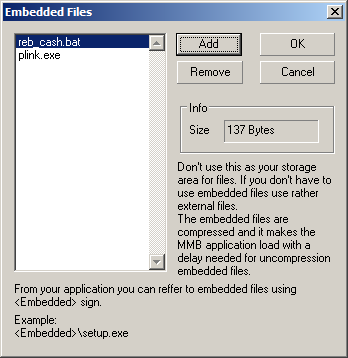
And just hang the event on the button, which will run the bat-file, which will pull plink.exe with the parameters. This is the simplest program:

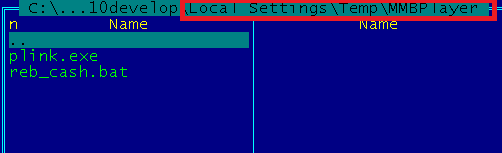
It is worth noting that when you do the Embedded Files in Multimedia Builder, when you open the program, all the embedded files are automatically unpacked into a temporary directory and from there they will be launched.
Clicking on the button, just a line appears, which from the bat-file executes the simplest code.
SET /p ipcash=Enter CashIP: plink.exe tc@%ipcash% -pw "12345" "sudo /sbin/reboot" 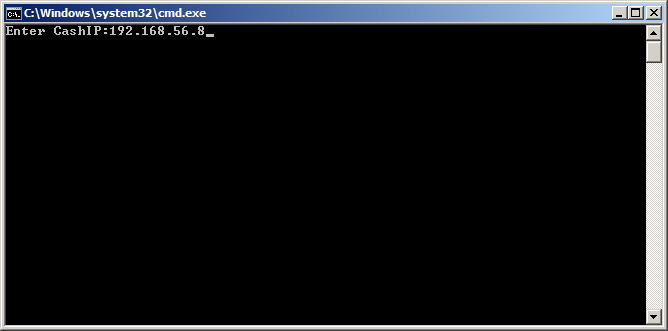
I know that it is possible for many people to tell things quite banal, but for me, as a person who learned the basics of automation, all this was and remains interesting to this day.
What did you do next? - A very simple, laid out on a corporate resource and sent a letter to colleagues, saying that there is such a thing.
And what do you think? - The people began to use, and, accordingly, Wishlist appeared.
Once again, by creating such a piece, I comprehended everything from scratch on how to write batch scripts to bash scripts and so on.
Well, then came the next version. That is, two buttons have already appeared.
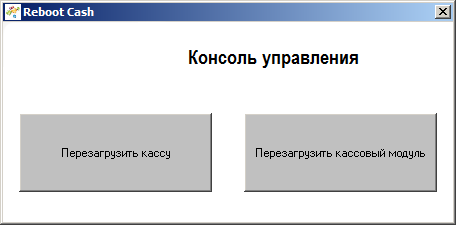
And then it went. Moreover, it is worth noting, the further I went into the process of studying the automation of processes for working with remote connections, the more I myself had ideas on how to do something, the better it would be for our support to be more convenient.
The next version appeared again:

And the next version:
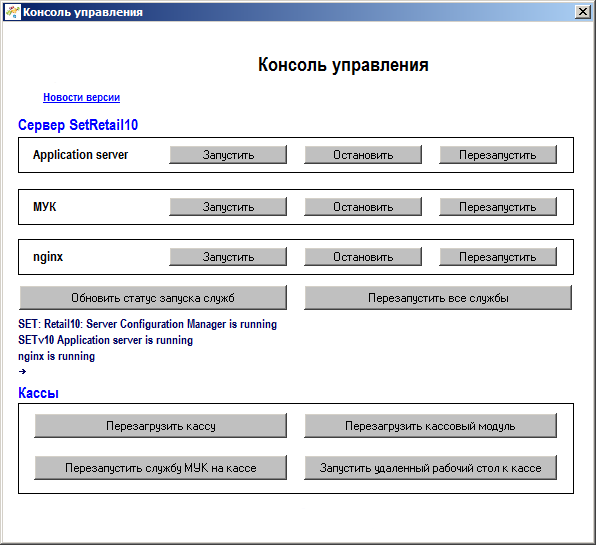
And the next version:
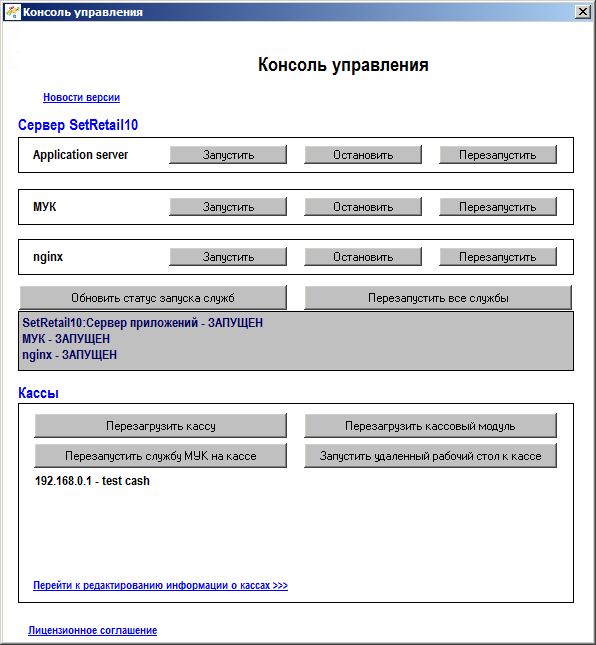
And so the version for the version, the growth of interest and my knowledge.
Then I learned how to do the installation packages and the program got my installer:

Well, the functionality was added:
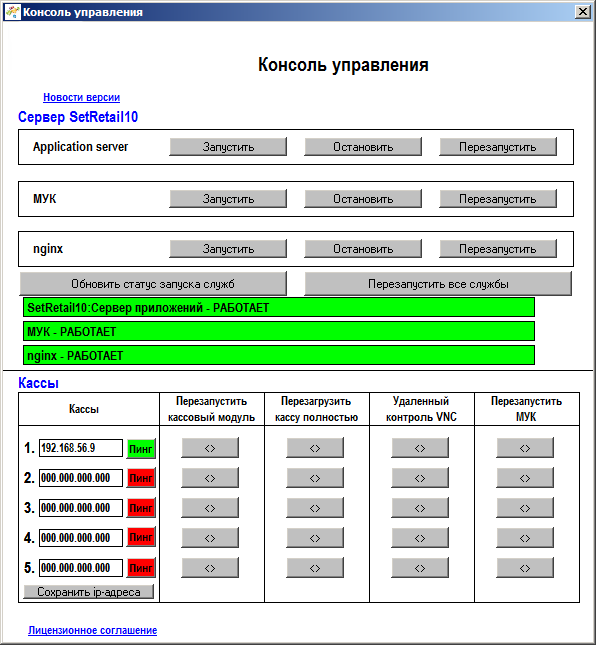
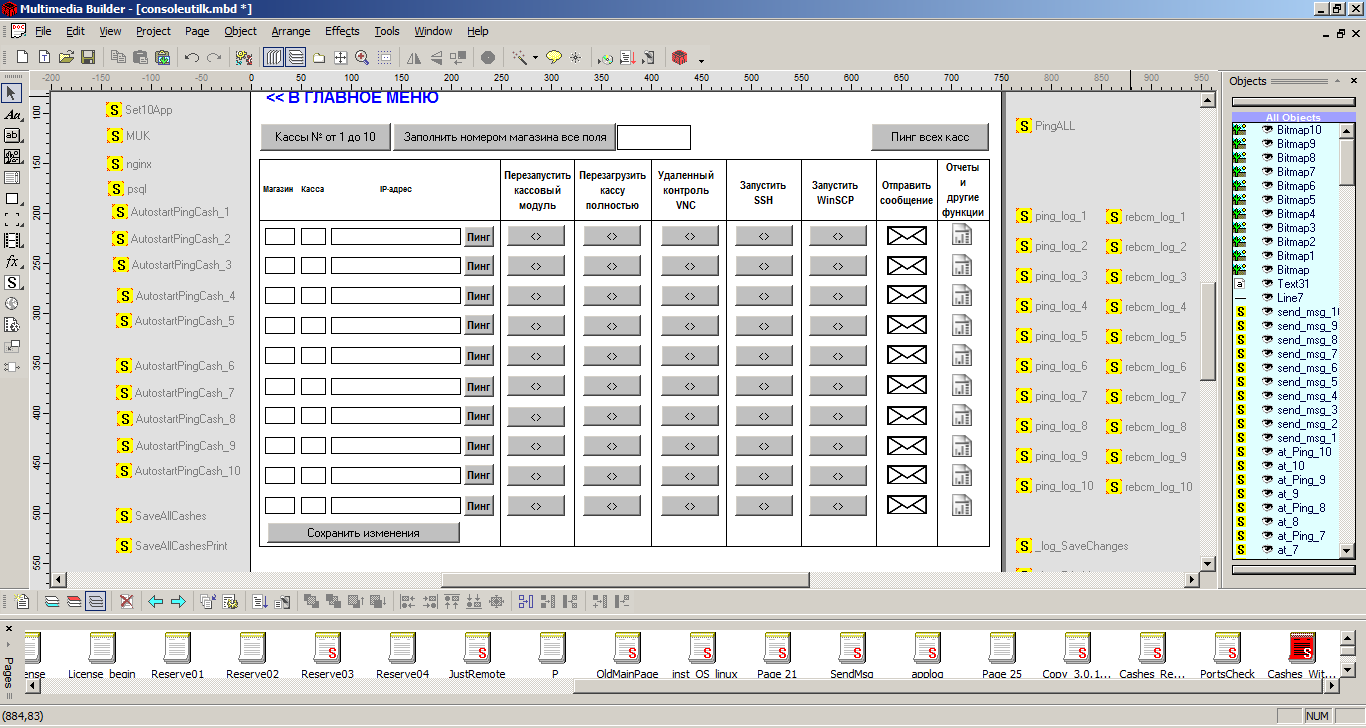
And now, two years later, it looks like this:
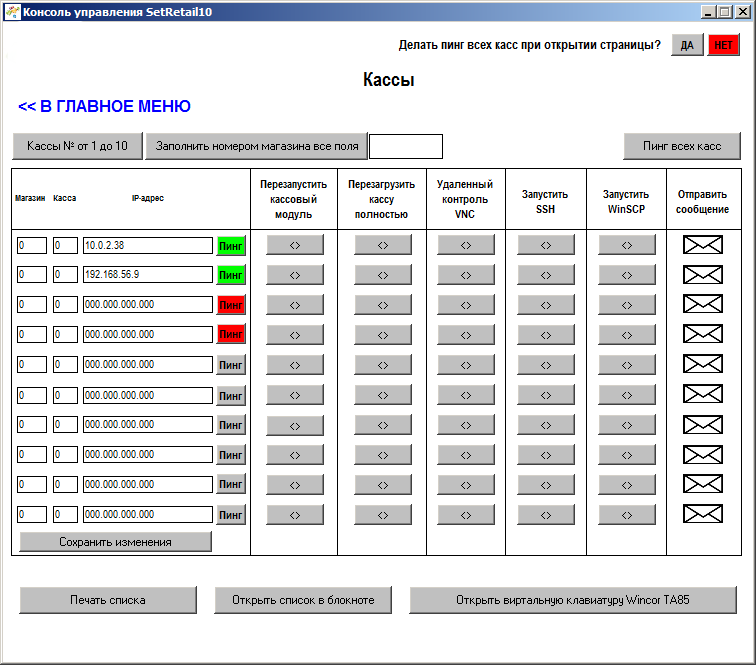
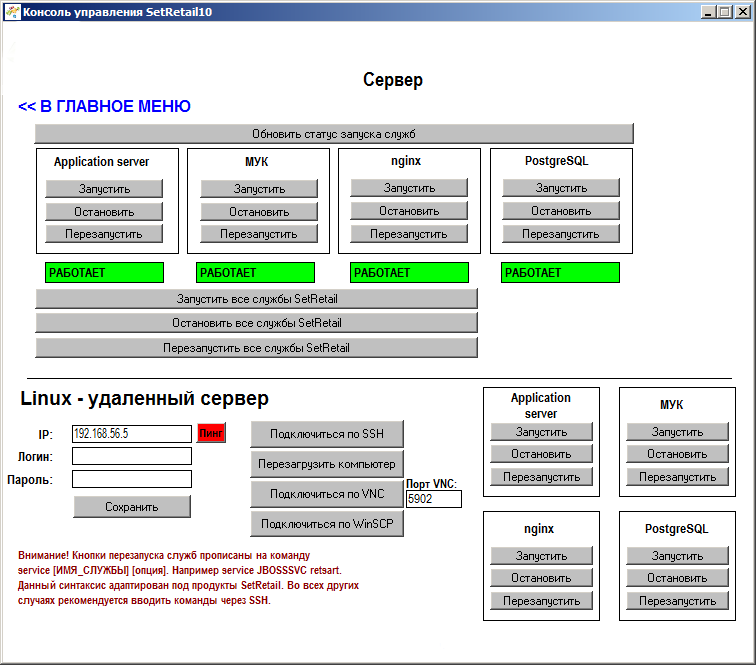

Now we can say that this is a good tool for managing servers and cash registers. Even he would not have thought that he could write such a thing.
To tell about it, unfortunately, the strength is not enough at the fingers, since it began only with my simple hobby or question to myself: And how can I restart the computer remotely on Linux (we have a cash register on Linux)?
What it has become in 4 years you have seen above.
But let us now share how, for example, I implement everything there.
So, you saw the interface with the list of cash registers, now about the implementation of some functions. Immediately I repeat that I can say an amateur, and comprehended everything from scratch, so any criticism and comments from the pros are welcome.
1. Ping
I immediately wanted in my fantasies that by clicking on a button, it would be possible to ping the cashier and at the same time, so that it is highlighted in a certain color.

Nakodil just such a thing:
srok1$=cs1$ File1$='cashes/01c.txt' Rv1=StrToFile(File1$,srok1$,FALSE,FALSE) clear$='' srok1$='For /F "Delims=" %%I In (01c.txt) Do Set c01=%%~I' srok2$='Ping -n 1 -w 1 %c01% >nul' srok3$='If %ErrorLevel%==0 (' srok4$=' <nul set /p strTemp=a>c01ping.txt' srok5$=') Else (' srok6$=' <nul set /p strTemp=n>c01ping.txt' srok7$=')' File3$='cashes/c01ping_mmb.bat' Rv=StrToFile(File3$,clear$,FALSE,FALSE) Rv=StrToFile(File3$,srok1$,TRUE,TRUE) Rv=StrToFile(File3$,srok2$,TRUE,TRUE) Rv=StrToFile(File3$,srok3$,TRUE,TRUE) Rv=StrToFile(File3$,srok4$,TRUE,TRUE) Rv=StrToFile(File3$,srok5$,TRUE,TRUE) Rv=StrToFile(File3$,srok6$,TRUE,TRUE) Rv=StrToFile(File3$,srok7$,TRUE,TRUE) Run("<SrcDir>\cashes\c01ping_mmb.bat","HIDE") Pause("1000") path1$ = 'cashes/c01ping.txt' col1$='0,255,0' col2$='255,0,0' LoadText("r1$","FILE:path1$") If (r1$='a') Then SetObjectParam("bt1","BGCOLOR=col1$") Else If (r1$='n') Then SetObjectParam("bt1","BGCOLOR=col2$") End End The bottom line is that immediately when you click on the "ping" button, the ip-address is written to the file for this field where the address is. Next, generate a code for the batch file that will read the ip-address from a text file and run it. According to the result of the batch file, the answer file “n” or “a” is generated, and depending on this, by reading the result we paint the button. Yes, of course in an amateur way, but it works.
2. Run putty.exe without entering a login and password.
All of you know that if you connect PuTTy in a standard way, you need to enter your login and password. Often in our service it is necessary to quickly connect to the checkout and, in principle, the login and password in most cases on them by default.
If you run PuTTy, it will be something like this:
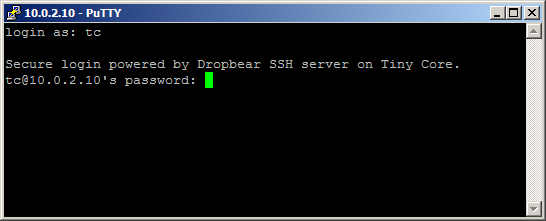
But I thought, why not do it like this: I clicked a button and you immediately opened the SSH command line.
Born here is such an amateur code:
srok1$=cs1$ File1$='cashes/01c.txt' Rv1=StrToFile(File1$,srok1$,FALSE,FALSE) clear$='' srok01$='For /F "Delims=" %%I In (cashes/01c.txt) Do Set c01=%%~I' srok02$='REG ADD HKCU\Software\SimonTatham\PuTTY\Sessions\%c01% /f' srok03$='REG ADD "HKCU\Software\SimonTatham\PuTTY\Sessions\%c01%" /f /v HostName /t REG_SZ /d %c01%' srok04$='REG ADD "HKCU\Software\SimonTatham\PuTTY\Sessions\%c01%" /f /v LineCodePage /t REG_SZ /d UTF-8' srok05$='echo y | plink.exe tc@%c01% -pw "12345" exit' srok06$='putty.exe -load %c01% tc@%c01% -pw "12345"' File3$='run_putty.bat' Rv=StrToFile(File3$,clear$,FALSE,FALSE) Rv=StrToFile(File3$,srok01$,TRUE,TRUE) Rv=StrToFile(File3$,srok02$,TRUE,TRUE) Rv=StrToFile(File3$,srok03$,TRUE,TRUE) Rv=StrToFile(File3$,srok04$,TRUE,TRUE) Rv=StrToFile(File3$,srok05$,TRUE,TRUE) Rv=StrToFile(File3$,srok06$,TRUE,TRUE) Run("run_putty.bat","HIDE") RunScript("ssh_log_1") Logics:
- Write the ip-address to a text file.
- Next generic batch file.
- When running, ip-address is substituted in the variable batch file.
- The session is added to the registry.
- PuTTy.exe opens the session.
And voila:
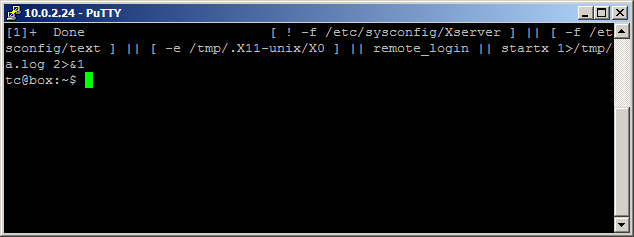
3. Remote VNC server.
We also have the ability to remotely connect via the VNC server protocol, so that you can see what the cashiers are doing there.
For this, I took Real VNC Viewer.
Next came the following code:
srok1$=cs1$ File1$='cashes/01c.txt' Rv1=StrToFile(File1$,srok1$,FALSE,FALSE) clear$='' srok01$='For /F "Delims=" %%I In (cashes/01c.txt) Do Set c01=%%~I' srok02$='rem SET /p ipcash=Enter CashIP for run remote DeskTop:' srok03$='echo n | plink.exe -v -ssh tc@%c01% -pw "12345" -m rdp_vnc_cmd.txt' srok04$='vncviewer.exe %c01%' File3$='rn_vnc_mmb.bat' Rv=StrToFile(File3$,clear$,FALSE,FALSE) Rv=StrToFile(File3$,srok01$,TRUE,TRUE) Rv=StrToFile(File3$,srok02$,TRUE,TRUE) Rv=StrToFile(File3$,srok03$,TRUE,TRUE) Rv=StrToFile(File3$,srok04$,TRUE,TRUE) Message(" . .","") Run("rn_vnc_mmb.bat","HIDE") RunScript("vnc_log_1") Logics:
- Write the ip-address to a text file.
- Generate a batch file, which reads the ip-address from this text file.
- Next, run vncviewer.exe, which reads the session.
Well, the session actually opens:
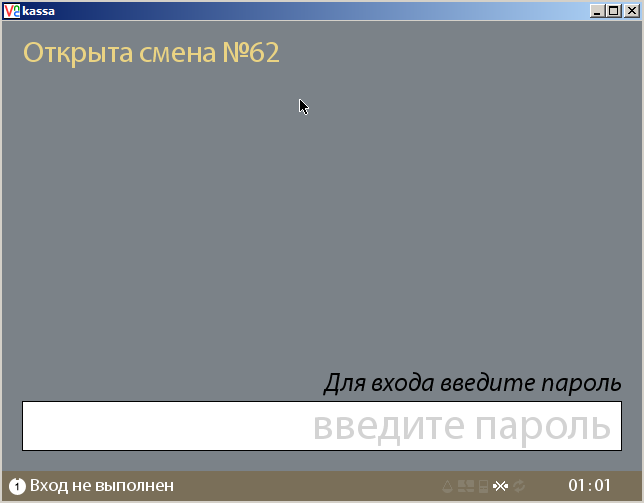
Something like that.
In fact, there are still a lot of lotions.
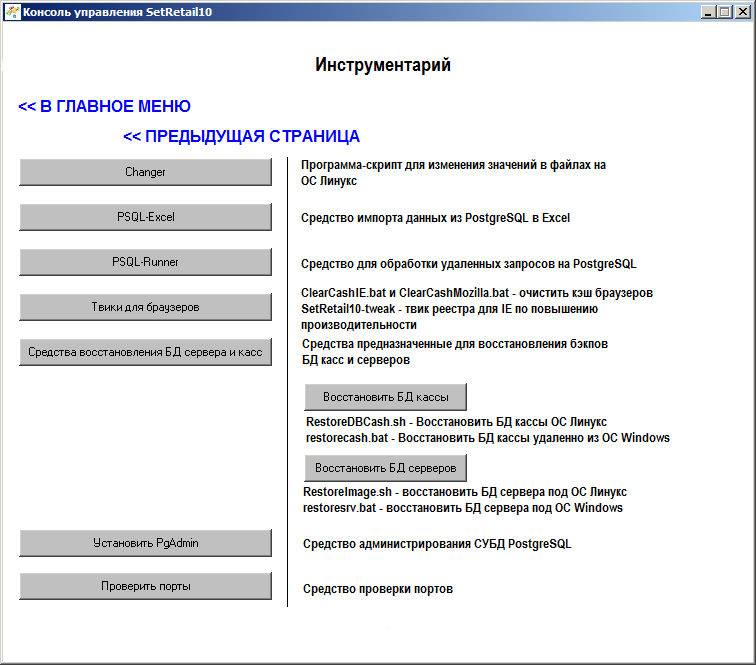
And now all this looks like this after 2 years, as I began to study everything:
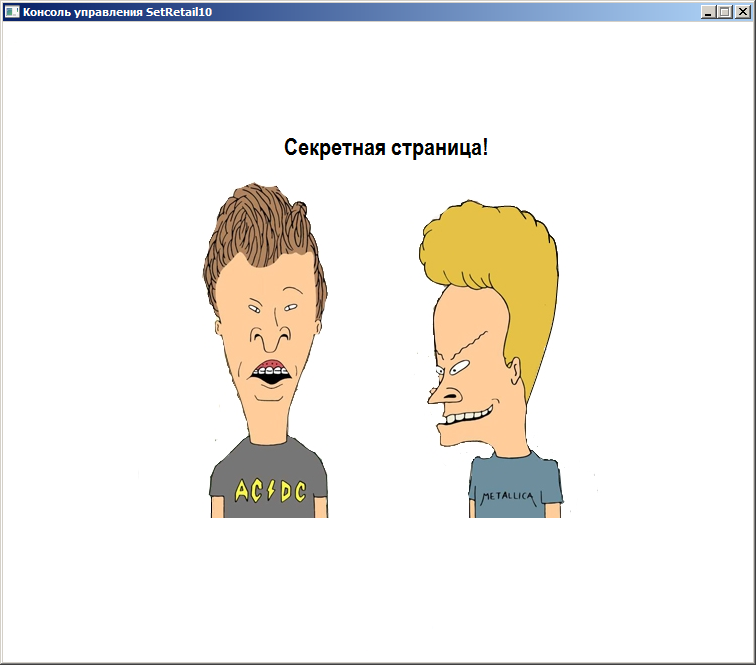
And of course, not without paschalok. I did one recently: if you accidentally click the mouse here and there, you will find yourself in the secret section, where there are a lot of chips, so that you can make your colleagues laugh!
Source: https://habr.com/ru/post/242807/
All Articles