MODx Revo, Login authorization setting. Basic setup
For the most part, this article is a translation of the lesson from the official rtfm , namely the “Login” component, but with inserts of the translator. I don’t go for the best translation, but the essence should be clear in the end. However, I still haven't found a translation into Russian.
This lesson, although called the “base”, has many interrelated parts. In this lesson we will discuss which pages you need to create, which chunks (code snippets) and snippets need to be published on the pages for full user authorization.
Numbers in parentheses are resource IDs. This page_id, you can have it different. Here they are selected simply for convenience.
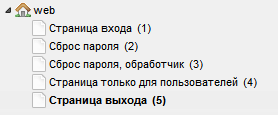
Before we post chunks with code snippets, create five pages.
This is how the resource tree looks like at the moment. Keep in mind that your resource ID will be different. In this example, there is nothing but pages for the “Login” component.
Next, we need to assign the correct rights for users and resources.
')
MODX Revo has a very flexible system of detailing rights when it comes to permissions for users, but in this topic we will only do what we need without going deep into the topic. And so, let's get started.
1. Security → Resource Groups
Click on "Create a group of resources" and call it "Only for users", for example. Click "Save" and everything, on this page do not change anything else.

2. Security → Access Control
On the first tab “User Groups” click on “New User Group”. A new group is called “Users” and click on “Save”. A group of users will have access to “Users Only” resources. Why do we need it, we will learn a little later as part of this lesson.
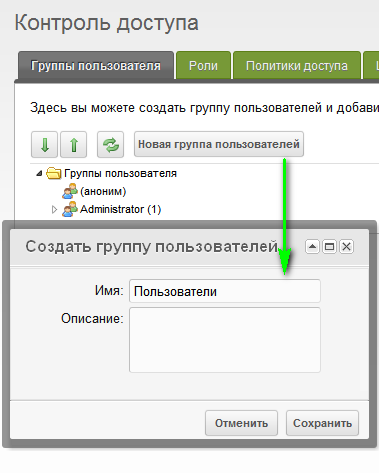
3. On the same page ( Security → Access Control ), right-click on the created user group and select “Edit user group”.
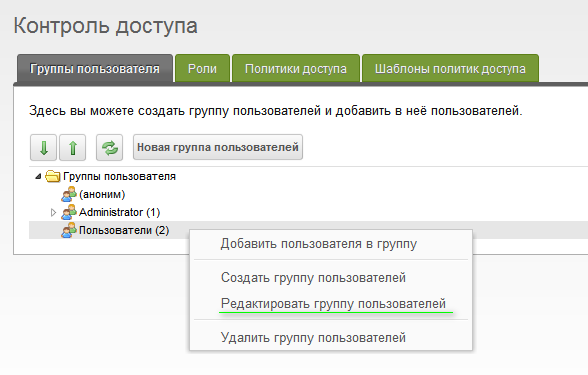
Next, go to the tab “Access to resource groups” and click on “Add resource group”. For proper operation, there must be at least the following parameters:
Resource group: For users only (the one we just created)
Minimum Role: Member-9999
Access Policy: Load, List and View
Context: web
And save.

4. Security → User Management
We create a “new user” and thereby check how the differentiation of access rights for users will work.
In this case, use a simple username and password, because to us, as I wrote above, it is important to make sure that the new user is in the Users group. To do this, go to the tab "Permissions" and click on "Add user to the group."
User Group: Users
Role: Member
Then click "save" at the window, and then again in the right corner of the control panel.

This should ensure that the new user can log in with “User” rights to view the page with “Only for users” rights.
Now back to the pages in order to add snippets and code snippets to the appropriate pages.
Place the following snippet call code on the users login page.
A chunk (code snippet) that displays the login form should also include a link to the “password recovery” page. Let's sort out what we have in the form call:
& loginTpl = `lgnLoginTpl` - the chunk is responsible for the login form lgnLoginTpl, if the user is not authorized
& logoutTpl = `lgnLogoutTpl` - if the user is authorized, then the contents of the chunk will be displayed to him lgnLogoutTpl
& errTpl = `lgnErrTpl` - if you enter data incorrectly for authorization, or by the simple word“ error ”, the chunk lgnErrTpl will be displayed
& loginResourceId = `4` - where to redirect the user after successful authorization. Indicated as a resource ID, in this case 4.
& logoutResourceId = `5` - if the user is authorized, they will be redirected to the page with the ID equal to 5 upon exit.
Also, I want to note that these chunks are standard, you can create your own chunks, for every taste, layout, and implementation. This provides the ability to display the input / output form and so on in any desired form, and moreover, without causing chaos with the code. Standard templates, by the way, can also be changed.
Here is the code that will be given to users who have not yet logged in, in other words - “login form”. Chunk - lgnLoginTpl .
You can put a link to “Forgot your password” (Reset password) inside your template and refer to it by ID. In my case, the resource ID with password recovery is 2.
Let's start with the fact that this page is often hidden from the menu. It is mostly a form by which users can reset a password. Here I want to explain to you that the password reset page (with ID 2 in my case), provides an opportunity to say that the password needs to be restored, and the reset page does the “Password Reset Handler (3)” page.
Call the password reset form with the following code:
We will sort out the call:
& resetResourceId = `3` is a page handler (in my case with ID 3), it is this one that resets.
& tpl = `lgnForgotPassTpl` is a chunk with a code that has a password reset form.
To understand why the handler and how it works, I suggest to look at the picture:
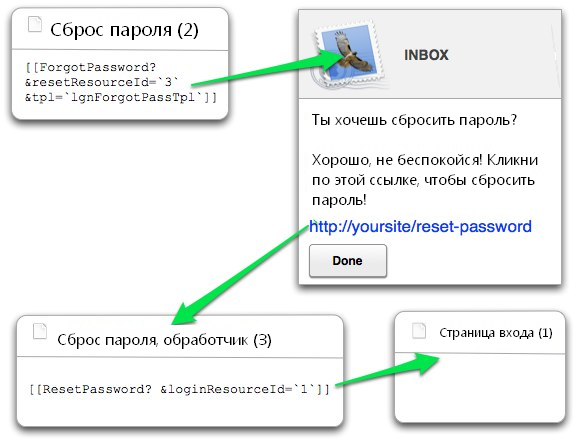
This page should be hidden from all sorts of menus. Nevertheless, even if there is a link to it - it will be just meaningless.
Its essence is as follows. When a user requests a password reset, a message comes to him with this link, as well as a hash. When a user clicks a link from a mail, MODx resets the password and redirects the user to the login page.
On the handler page, the snippet is called like this:
This is a page confirming that the user has successfully logged in. The content of this page is available only to authorized users.
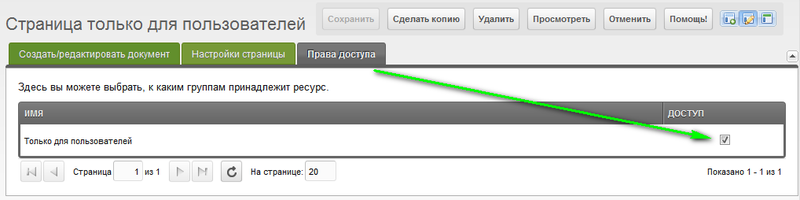
In order for the page to be accessible only to authorized users, we need to assign rights to it. To do this, in the resource tree click on the "Page only for users." Then, go to the tab “Access rights”, there we see the text “Only for users” and to the right of it, in the “Access” column we see an unchecked checkbox. Mark the check-box and click "save".
This is the page that users get after successfully logging out. The page should contain only the main, for example a message with a farewell, or a link to the login form. For example:
This is not mandatory, but for testing and in general, ease of development, you can get a special link to exit. To do this, create a “new link” (web-link) and fill its page with ID 1. For example, call the page with a link like this:
It can be used to exit in this form:
After we have collected all the pages, linked them, set up access rights, we have to check everything. If everything works according to our plan, then at the entrance we will be forwarded to the “For users only” page. We can exit the account through the login page, since if we are logged in, a link to the exit will appear on the login page. After a successful exit, you should be forwarded to the “exit page”.
Usually, such problems occur when incorrectly specifying page IDs, incorrectly spelled chunks, or missing square brackets. Check the codes carefully.
In addition, it is worth remembering that all the above written snippets should be called uncached. Of course, some will probably work in cached form, but most will not. You can call in non-cached form using an exclamation mark, for example, you should write like this:
Not so:
One of the reasons for not having to leave your account is that the exit link points to a page where there is no login form. It is worth remembering that the exit button should point to the page with the login form.
It may also be that when a password is reset, a message is not received by e-mail. In this case, you should configure sending mail on your server.
Ask questions if I know the answer, I will certainly help. The next lesson will be translated in your free time. Your comments will be taken into account :)
I apologize for making the code for the first time, but how to make out is not written anywhere ...
This lesson, although called the “base”, has many interrelated parts. In this lesson we will discuss which pages you need to create, which chunks (code snippets) and snippets need to be published on the pages for full user authorization.
Numbers in parentheses are resource IDs. This page_id, you can have it different. Here they are selected simply for convenience.
Create the necessary pages
Before we post chunks with code snippets, create five pages.
- Login Page (1): page containing login form
- Password Reset (2): a page where users can request a password reset
- Password reset, handler (3): a hidden page that will actually reset the password. Users will not see her.
- Page for users only (4): page whose contents can only be seen by authorized users of the site
- Logout page (5): the page to which the user is redirected after a successful logout
This is how the resource tree looks like at the moment. Keep in mind that your resource ID will be different. In this example, there is nothing but pages for the “Login” component.
Next, we need to assign the correct rights for users and resources.
')
Create the necessary user groups and resource groups
MODX Revo has a very flexible system of detailing rights when it comes to permissions for users, but in this topic we will only do what we need without going deep into the topic. And so, let's get started.
1. Security → Resource Groups
Click on "Create a group of resources" and call it "Only for users", for example. Click "Save" and everything, on this page do not change anything else.
2. Security → Access Control
On the first tab “User Groups” click on “New User Group”. A new group is called “Users” and click on “Save”. A group of users will have access to “Users Only” resources. Why do we need it, we will learn a little later as part of this lesson.
3. On the same page ( Security → Access Control ), right-click on the created user group and select “Edit user group”.
Next, go to the tab “Access to resource groups” and click on “Add resource group”. For proper operation, there must be at least the following parameters:
Resource group: For users only (the one we just created)
Minimum Role: Member-9999
Access Policy: Load, List and View
Context: web
And save.
4. Security → User Management
We create a “new user” and thereby check how the differentiation of access rights for users will work.
In this case, use a simple username and password, because to us, as I wrote above, it is important to make sure that the new user is in the Users group. To do this, go to the tab "Permissions" and click on "Add user to the group."
User Group: Users
Role: Member
Then click "save" at the window, and then again in the right corner of the control panel.
This should ensure that the new user can log in with “User” rights to view the page with “Only for users” rights.
Now back to the pages in order to add snippets and code snippets to the appropriate pages.
Add snippets to pages
Login Page (1)
Place the following snippet call code on the users login page.
[[!Login? &loginTpl=`lgnLoginTpl` &logoutTpl=`lgnLogoutTpl` &errTpl=`lgnErrTpl` &loginResourceId=`4` &logoutResourceId=`5`]] A chunk (code snippet) that displays the login form should also include a link to the “password recovery” page. Let's sort out what we have in the form call:
& loginTpl = `lgnLoginTpl` - the chunk is responsible for the login form lgnLoginTpl, if the user is not authorized
& logoutTpl = `lgnLogoutTpl` - if the user is authorized, then the contents of the chunk will be displayed to him lgnLogoutTpl
& errTpl = `lgnErrTpl` - if you enter data incorrectly for authorization, or by the simple word“ error ”, the chunk lgnErrTpl will be displayed
& loginResourceId = `4` - where to redirect the user after successful authorization. Indicated as a resource ID, in this case 4.
& logoutResourceId = `5` - if the user is authorized, they will be redirected to the page with the ID equal to 5 upon exit.
Also, I want to note that these chunks are standard, you can create your own chunks, for every taste, layout, and implementation. This provides the ability to display the input / output form and so on in any desired form, and moreover, without causing chaos with the code. Standard templates, by the way, can also be changed.
Here is the code that will be given to users who have not yet logged in, in other words - “login form”. Chunk - lgnLoginTpl .
<div class="loginForm"> <div class="loginMessage">[[+errors]]</div> <div class="loginLogin"> <form class="loginLoginForm" action="[[~[[*id]]]]" method="post"> <fieldset class="loginLoginFieldset"> <legend class="loginLegend">[[+actionMsg]]</legend> <label class="loginUsernameLabel">[[%login.username]] <input class="loginUsername" type="text" name="username" /> </label> <label class="loginPasswordLabel">[[%login.password]] <input class="loginPassword" type="password" name="password" /> </label> <input class="returnUrl" type="hidden" name="returnUrl" value="[[+request_uri]]" /> [[+login.recaptcha_html]] <input class="loginLoginValue" type="hidden" name="service" value="login" /> <span class="loginLoginButton"><input type="submit" name="Login" value="[[+actionMsg]]" /></span> </fieldset> </form> </div> </div> <a href="[[~2]]"> ?</a> You can put a link to “Forgot your password” (Reset password) inside your template and refer to it by ID. In my case, the resource ID with password recovery is 2.
Reset Password (2)
Let's start with the fact that this page is often hidden from the menu. It is mostly a form by which users can reset a password. Here I want to explain to you that the password reset page (with ID 2 in my case), provides an opportunity to say that the password needs to be restored, and the reset page does the “Password Reset Handler (3)” page.
Call the password reset form with the following code:
[[!ForgotPassword? &resetResourceId=`3` &tpl=`lgnForgotPassTpl`]] We will sort out the call:
& resetResourceId = `3` is a page handler (in my case with ID 3), it is this one that resets.
& tpl = `lgnForgotPassTpl` is a chunk with a code that has a password reset form.
To understand why the handler and how it works, I suggest to look at the picture:
Password Reset Handler (3)
This page should be hidden from all sorts of menus. Nevertheless, even if there is a link to it - it will be just meaningless.
Its essence is as follows. When a user requests a password reset, a message comes to him with this link, as well as a hash. When a user clicks a link from a mail, MODx resets the password and redirects the user to the login page.
On the handler page, the snippet is called like this:
[[!ResetPassword? &loginResourceId=`1`]] - & loginResourceId = `1` indicates which page to redirect to, in our case, the page with ID 1, where there is a login form.Page only for users (4)
This is a page confirming that the user has successfully logged in. The content of this page is available only to authorized users.
In order for the page to be accessible only to authorized users, we need to assign rights to it. To do this, in the resource tree click on the "Page only for users." Then, go to the tab “Access rights”, there we see the text “Only for users” and to the right of it, in the “Access” column we see an unchecked checkbox. Mark the check-box and click "save".
Exit Page (5)
This is the page that users get after successfully logging out. The page should contain only the main, for example a message with a farewell, or a link to the login form. For example:
<p> ! !</p> Additionally
Exit Page (5)
This is not mandatory, but for testing and in general, ease of development, you can get a special link to exit. To do this, create a “new link” (web-link) and fill its page with ID 1. For example, call the page with a link like this:
[[~1? &service=`logout`]] It can be used to exit in this form:
<a href="[[~1? &service=`logout`]]" title=""></a> Possible mistakes
After we have collected all the pages, linked them, set up access rights, we have to check everything. If everything works according to our plan, then at the entrance we will be forwarded to the “For users only” page. We can exit the account through the login page, since if we are logged in, a link to the exit will appear on the login page. After a successful exit, you should be forwarded to the “exit page”.
I can not log in!
Usually, such problems occur when incorrectly specifying page IDs, incorrectly spelled chunks, or missing square brackets. Check the codes carefully.
In addition, it is worth remembering that all the above written snippets should be called uncached. Of course, some will probably work in cached form, but most will not. You can call in non-cached form using an exclamation mark, for example, you should write like this:
[[!Login]] Not so:
[[Login]] I can not log out of your account!
One of the reasons for not having to leave your account is that the exit link points to a page where there is no login form. It is worth remembering that the exit button should point to the page with the login form.
It may also be that when a password is reset, a message is not received by e-mail. In this case, you should configure sending mail on your server.
Ask questions if I know the answer, I will certainly help. The next lesson will be translated in your free time. Your comments will be taken into account :)
I apologize for making the code for the first time, but how to make out is not written anywhere ...
Source: https://habr.com/ru/post/132743/
All Articles