Designing Interactive Products in Fireworks
This article was published back in 2008 on the official Adobe website. In it, Nick Myers (Cooper's leading visual designer) talks about the advantages of Fireworks in designing interactive products.
I am often asked the question: “What tools do you use when designing your products?”. My answer "Fireworks" was often met with bewilderment. I spend a lot of time explaining our preferences and it helps, but I feel somewhat defensive, since Adobe Fireworks is not a standard tool in our industry.
When I first came to the consulting company Cooper, I realized that I would have to part with the all-powerful Adobe Photoshop (my ally from those times when there was no layer in it), and I was a little worried and skeptical, but after a few weeks changed the design approach to the hazard-free Marquee Tool. The truth is that Fireworks has many advantages for developing interactive design, and it perfectly supports our workflow. This article describes how Fireworks helps us develop interactive products.
')
If you are interested in how we use Fireworks in our workflow and in the development of visual design, and also want to get an idea of the new product that we developed (mentioned later in this article), then first of all watch this video .
At Cooper, we develop a wide range of interactive products for various platforms, desktop, Internet and mobile devices. Our design teams are small and usually consist of an interaction designer, a communication designer and a visual designer, and if there are hardware components in the project, then an industrial designer. The designer of interaction with the designer of communications jointly develops documentation of the behavior of the interface, and the visual designer is responsible for its appearance. An industrial designer takes into account physical form factors that depend on hardware. Finally, the team is in charge of the one who provides management and leadership to the team.
In the design phase, the project team begins to create storyboards of scenarios on the board, where they are refined again and again. The development is documented for our clients so that they can follow and participate in the creation of their products.
After generating a large number of ideas, the interaction designer transfers the work to Fireworks. Other companies use tools such as Visio or OmniGraffle for interaction design and Photoshop for visual design. But over the years we have learned how to use Fireworks so as to extract a lot of advantages from it.
Firstly, thanks to him, team members work more closely with each other in the redistribution of work and joint problem solving. Secondly, we work faster, because we don’t have to recreate the elements and recheck the work for the presence of certain files. Finally, this reduces design errors, since we do not encounter different versions. Figure 1 shows the different stages of design work in Fireworks.

Figure 1. Initial prototypes created by the interaction designer, and then refined by the visual designer.
Interaction Designer begins designing a script by displaying the main elements (using the standard styles found in Fireworks) that look schematic. We intend not to use visual effects in order to focus on the behavior of the product. An interaction designer not only designs one screen. It can make 20-30 screens of storyboard interface behavior and several usage scenarios. Fireworks combines all of these screens in one file with states (earlier frames).
For example, one of the scenarios we developed for GoldMail, an application for exchanging photos with voice messages. User Nicole adds and sorts photos of his cat and family to share with his mother, Margaret. Figure 2 shows how the scripts are distributed between different states in one file. Managing multiple screens in a single file reduces development time and helps our team focus on solving project problems.

Figure 2. Final screens are distributed across multiple states in a single Fireworks file.
The power of states is felt when you start using shared layers. Take a look at the global navigation on the GoldMail screen shown in Figure 3 . In the scenario, the position of the navigation menu remains consistent, but the buttons change the appearance when Nicole creates records, and sorts them using GoldMail.
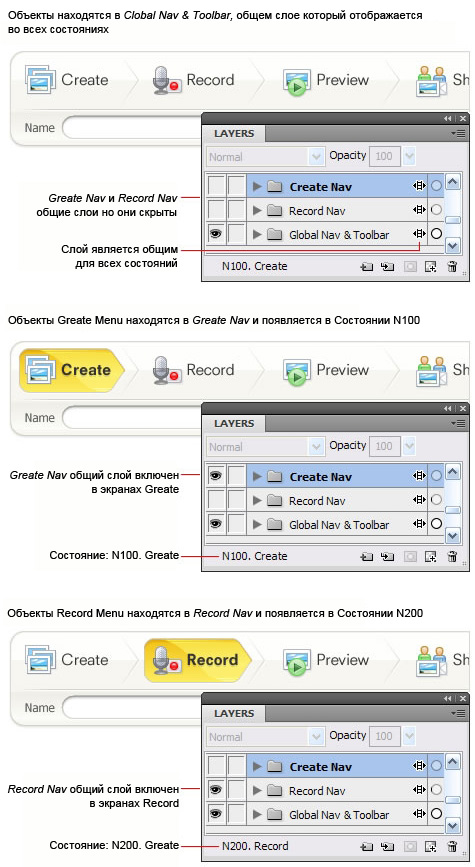
Figure 3. Navigation elements are distributed across several states. It is enough to change them once so that they are updated in all states.
Having placed all the navigation elements in the common layers, you will see that they are displayed and accessible for control from all the common states. During transitions, the menu changes, demonstrating at what stage Nicole is, creates or records the screen, various common layers are used to access them from different states. It is worth recalling that the common layer is in one place but refers to several states. Each shared layer can be turned on or off depending on the scenario.
Managing content from one place ensures that all scripts are consistent. The overall layer containing the navigation is sufficient to adjust in one state so that it is updated in all the others. This not only saves the interaction designer time, but also helps the visual designer when he needs to add or edit design elements.
Often you have to work with regular layers (not common) or several specific elements. For example, photographs and captions on the workspace, which are constantly changing during the script (Figure 4) . As a rule, you will understand that everything that occurs in more than two states is better placed in a common layer.
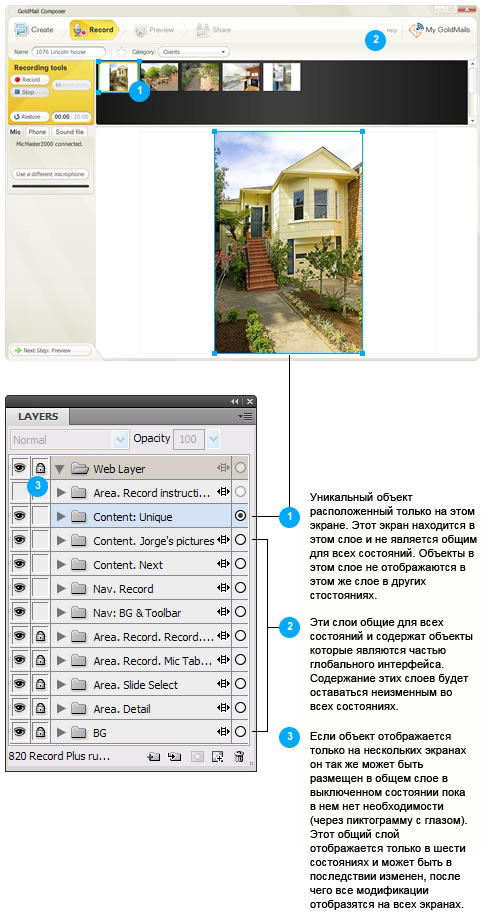
Figure 4. Unique objects are placed in ordinary (not common) layers.
The other main task of the interaction designer before transferring the completed file to the visual designer is the conversion of objects into symbols. Symbols work the same way as in Adobe Flash. The symbol is in the Document Library palette and can be edited in the same place, while the “instances” of the symbol are on the canvas. Any changes made to the symbol are instantly displayed in instances. Double clicking on any of the copies placed on the canvas opens the symbol and allows you to make changes to it.
The best characters candidates are those elements that are often used and change their position on the canvas. For this reason, icons and controls are ideal candidates for this role. Usually, the interaction designer knows where the location is for a particular control or icon, and places the placeholder character from the Document Library. The visual designer will make adjustments to it.
Symbols are easy to create: select an object, then select Modify> Symbol> Create Symbol or press F8. A dialog box opens in which it is better to select "Graphic" if you are planning a more complex image export. For elements that can be stretched (such as text fields), it is better to enable 9-slice scaling (Figure 5) . For icons, this can not be done, because it is not necessary.
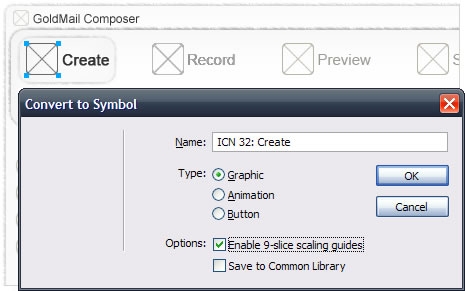
Figure 5. Create a symbol by selecting one or more objects, and press F8
The interaction designer is responsible for developing scenarios and common screen concepts, while the visual designer is working on a design strategy. Usually it consists of several options that reflect the specificity of the subject area, determined in the course of research. When one of the options is approved, the appropriate design method is applied to the scenarios that the interaction designer has developed.
Registration begins with the creation of the grid. The Guide panel (Figure 6) can be installed as an extension, it helps a lot in the grid generation process. For more information on the Guide panel, read the article Using the Guides panel in Fireworks CS3 , written by Eugene M. Jude (user interface designer for the Fireworks team).
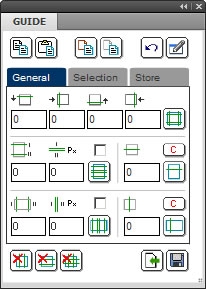
Figure 6. The Guide panel simplifies the construction of the main grid.
Subsequently, the visual designer adds styles to the main elements of the interface. Typically, this process begins with large objects, such as the background of an interface, and gradually shifts towards smaller objects, which can become symbols. A visual designer can create a global navigation style (as in the example above), and these changes will take effect immediately in all states.
One of my favorite tools in Fireworks is the Paste Attributes command. This command can be used for quick exchange between object styles (Figure 7) .
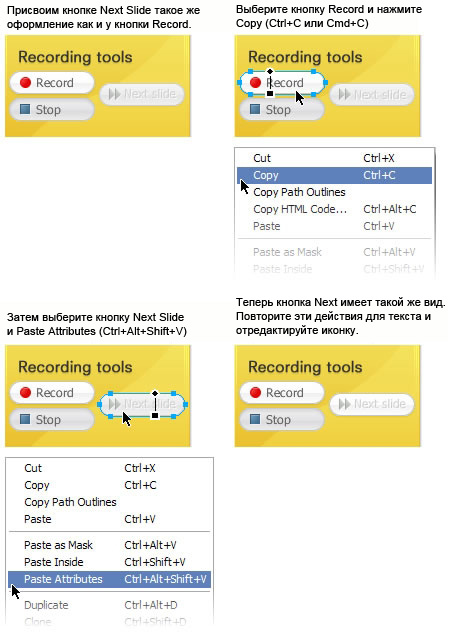
Figure 7. Quickly create gradient fills and shadows for all buttons in the interface by copying the properties of one button and pasting into all the others.
Suppose you create a style for a button and want this style to apply to all buttons in the file. You simply copy the style of the donor (Ctrl + C) and assign it to all recipients (Ctrl + Shift + Alt + V). This is a lightning operation.
This command copies not only the size and color of the text, but also other properties, such as headset, interline, filters that have been applied to the object. This can be useful if your text has a shadow. The Paste Attributes command can be applied to any objects, in particular, to vector shapes, lines, text and photos.
You can also create your own style sets and manage them in the Styles palette (Figure 8) . You can add a style to the palette, and then apply it to other objects.
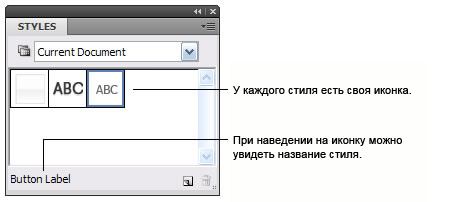
Figure 8. Use the Styles palette to view and manage styles (using the standard set or working with the original styles of an open document)
If you decide to change the style of these objects, simply change one object and select the “override style” item, as a result of which objects with this style will be updated (Figure 9) . You can even assign styles to objects from other open files. It's not easy to distinguish similar styles in a palette with small icons, but the labels at the bottom of the palette should help you a little.
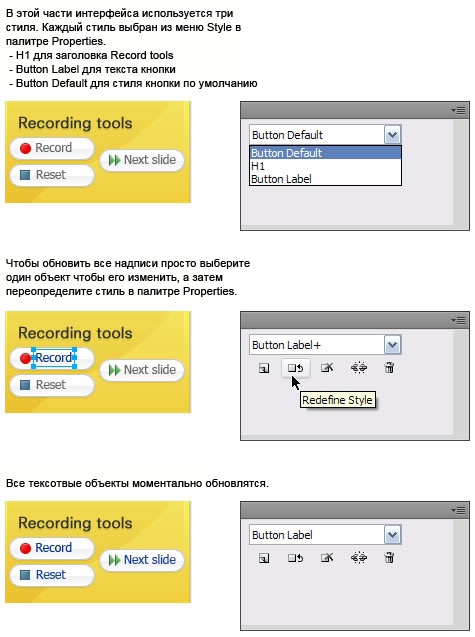
Figure 9. Object change and style override to update all objects in the document
If the interaction designer created the correct file, then any frequently used object is a symbol. To edit a symbol, simply double-click on it. This turns on the editing mode, in which everything except the character is shaded and becomes inactive. Double clicking on the canvas saves the changes and returns to the edit mode of the entire screen (Figure 10) .

Figure 10. Double clicking on a rectangular symbol switches to edit mode.
Although Fireworks is a vector program, it is great for the design of icons of all kinds, be it very simple or, on the contrary, very detailed. But for the first time when moving from Photoshop you may be uncomfortable if you try to work at the pixel level without the help of the Path palette. This palette is one of the most important tools in Fireworks for pixel positioning (Figure 11) .
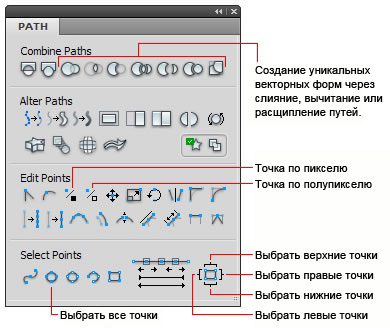
Figure 11. Path palette
To illustrate the above, let's look at the folder icon in Figure 12 . I made standard 32-pixel icons and now I need to make a 16-pixel version. If the icon is re-scaled, the outlines will become fuzzy. This happens because the lines have the aliasing property and are shifted relative to the pixel grid. When you select an object point that is shifted relative to the pixel grid and select the “Round points to pixels” option in the Path palette, this point is aligned with the center where the pixel boundaries intersect, and therefore this area becomes sharp, while the object does not lose the aliasing property .
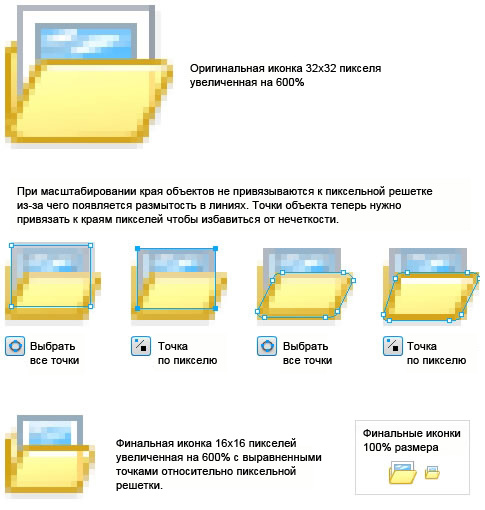
Figure 12. Use “Round points to pixel” in the Path paleit to get clear lines.
Path selection tools are also very useful. When the rounded parts need to be tied to the pixels, they simply select all the points. When expanding such an object as a rounded button, you can easily select all points on the right side of the button. To do this, simply select the control point on the panel (Figure 13) . The button width can be quickly extended if you use the keyboard arrows or the additional Shift key, which allows you to move 10 pixels at once.
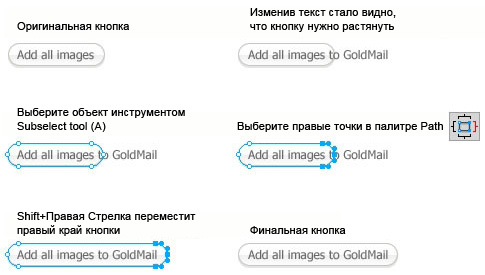
Figure 13. With frequent selection of points on an object, point selection tools will help you to cope with this operation. These commands can be improved by adding them to hotkeys (for example, Ctrl + 6 to select the right points).
Finally, you can simplify complex shapes and make lines smoother. There are some more useful commands at the Path panel, but I use them much less often.
Another interesting detail in Fireworks is the Common Library palette. This is an addition to the Document Library, which contains various controls with captions and managed states that can be placed on the canvas.
Note: Fireworks CS3 contains a limited set of Vista controls, but for XP, controls can be downloaded from Fireworks Exchange or senocular.com .
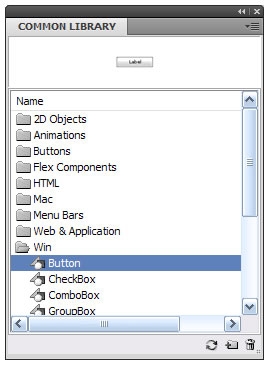
Figure 14. The Common Library palette contains many standard user interface controls that you can quickly transfer to your canvas.
You can select the checkbox from the WinXP folder and place it on the canvas, where it will appear as a checkbox with the label label. By opening the Symbol Properties palette you can quickly change states from true to false, thereby turning off the checkbox. By clicking on the label, you can change the signature. You can also change the state of the checkbox from active to inactive (Figure 15) .
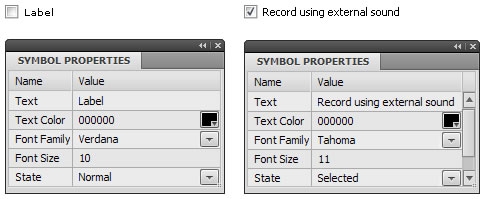
Figure 15. Quick editing of symbol properties, such as caption, style, text color and state of control
Interaction designers can easily manipulate UI controls without worrying about their appearance. Characters have a 9-slice scaling property, so you can change the width of the text field without having to modify the original object.
You can modify the characters in the Common Library to your own style, and even your own library of symbols in the Common Library ,. Just need to remember that each common symbol contains specially named objects referenced by the code, and they can not be changed. For more information on creating common symbols, see Using rich symbols in Fireworks by Aaron Beall.
Design elements, such as color or textures, are likely to change several times during the course of work. Fortunately, Fireworks supports this behavior with filters without destroying them. Some of the last tasks in a project usually include creating various states for buttons (normal, default, hover, click, and so on). Instead of creating a design from scratch, you can often take a ready-made button and remove or add new filters (Figure 16) . In this example, a white button with a shadow. To configure a disabled button, you just need to remove the filter responsible for the shadow and reduce the transparency.
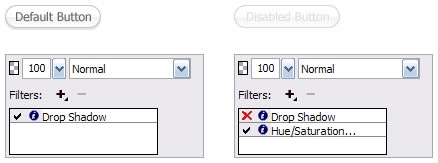
Figure 16. Quickly adjust and remove visual properties (such as shadows, color tone / saturation, levels, curves, etc.) using non-destructive filters
Design elements inevitably change in the project, and these funds help to make adjustments so that we can quickly share new ideas with colleagues and customers.
As soon as our design begins to take shape, we develop a document that describes how the product should work. This document, also known as the “Specification”, is completed by the communications designer who participated in the discussion of interface behavior and scenarios (Figure 17) .
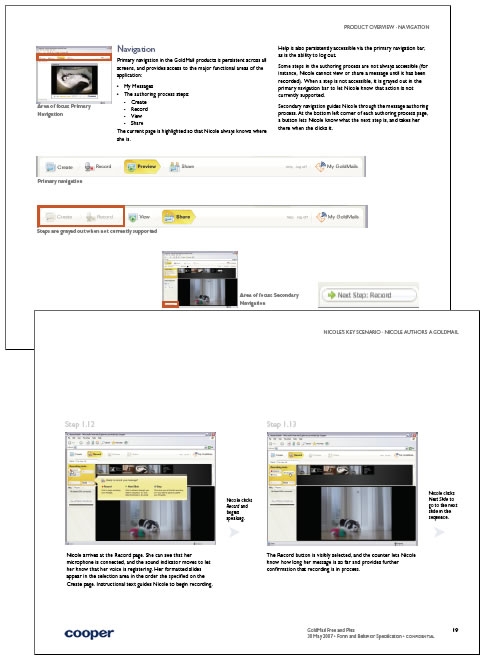
Figure 17. Description of interface controls and their behavior, as well as usage scenarios in the specification
We create this document in Adobe InDesign, with which Fireworks is great. We simply export all design states, describing them, and a volume book of amazing information is obtained.
Show the final result in a document or presentation simply using the Export command (Ctrl + X). You can export all states by selecting File> Export and selecting States to Files in the Export menu (Figure 18) . You can also export via Image Preview (Ctrl + Shift + X) to be sure of the quality of the exported image.

Figure 18. Exporting states into separate files for placing them in InDesign
In addition, the specification describes the visual style of the interface. This part often includes a description of the brand, colors, typographic features, images, etc. (Figure 19) . We use Fireworks to export all these parts.

Figure 19. Description of visual elements such as location, brand, typography, icons and controls in the visual style guide.
Fireworks is most popular for its effective work with graphic products. We usually export all screens to the documentation, but also often use it to export finished graphics. If you have disciplinedly associated graphics with symbols, then future graphics are easy to export from the Document Library. This is especially useful for icons where graphics are often not needed. Just go to the Document Library and use the Export Symbols option (Figure 20) .

Figure 20. Quickly export symbols using the option in the Document Library menu
Batch processing is also useful when you have a large set of graphic elements in the original format, and they need to be optimized for a specific environment, such as Java Swing or the Internet.
The fact that we spend most of the time working in Adobe Fireworks does not mean that we have stopped using Adobe Photoshop and Adobe Illustrator. Fireworks is designed for on-screen graphics, as Photoshop and Illustrator are more appropriate in print design. Photoshop is also preferred in photo retouching using Stamp tools. But I believe that most photo editing features such as levels, curves, and masks are easily configured in Fireworks and can be easily undone using filters.
Historically, Fireworks had a weak engine, but the new version now uses the Adobe engine, which has all the possibilities to fix the flaws in the program.
Over the years, we at Cooper have evaluated and re-evaluated competitive programs and can guarantee that we use the best tools. Interface development in Fireworks minimizes workflow and allows us to focus on the product of our customers.
See the following resources to learn more about Cooper workflows, using the Guides panel and rich characters:
PS
If you decide to try to cope with the new environment and you have questions, you can get an answer to them on the forum fireworks.co.ua .
I am often asked the question: “What tools do you use when designing your products?”. My answer "Fireworks" was often met with bewilderment. I spend a lot of time explaining our preferences and it helps, but I feel somewhat defensive, since Adobe Fireworks is not a standard tool in our industry.
When I first came to the consulting company Cooper, I realized that I would have to part with the all-powerful Adobe Photoshop (my ally from those times when there was no layer in it), and I was a little worried and skeptical, but after a few weeks changed the design approach to the hazard-free Marquee Tool. The truth is that Fireworks has many advantages for developing interactive design, and it perfectly supports our workflow. This article describes how Fireworks helps us develop interactive products.
')
If you are interested in how we use Fireworks in our workflow and in the development of visual design, and also want to get an idea of the new product that we developed (mentioned later in this article), then first of all watch this video .
How we work at Cooper
At Cooper, we develop a wide range of interactive products for various platforms, desktop, Internet and mobile devices. Our design teams are small and usually consist of an interaction designer, a communication designer and a visual designer, and if there are hardware components in the project, then an industrial designer. The designer of interaction with the designer of communications jointly develops documentation of the behavior of the interface, and the visual designer is responsible for its appearance. An industrial designer takes into account physical form factors that depend on hardware. Finally, the team is in charge of the one who provides management and leadership to the team.
In the design phase, the project team begins to create storyboards of scenarios on the board, where they are refined again and again. The development is documented for our clients so that they can follow and participate in the creation of their products.
Where is Fireworks used
After generating a large number of ideas, the interaction designer transfers the work to Fireworks. Other companies use tools such as Visio or OmniGraffle for interaction design and Photoshop for visual design. But over the years we have learned how to use Fireworks so as to extract a lot of advantages from it.
Firstly, thanks to him, team members work more closely with each other in the redistribution of work and joint problem solving. Secondly, we work faster, because we don’t have to recreate the elements and recheck the work for the presence of certain files. Finally, this reduces design errors, since we do not encounter different versions. Figure 1 shows the different stages of design work in Fireworks.
Figure 1. Initial prototypes created by the interaction designer, and then refined by the visual designer.
Using states to play scripts
Interaction Designer begins designing a script by displaying the main elements (using the standard styles found in Fireworks) that look schematic. We intend not to use visual effects in order to focus on the behavior of the product. An interaction designer not only designs one screen. It can make 20-30 screens of storyboard interface behavior and several usage scenarios. Fireworks combines all of these screens in one file with states (earlier frames).
For example, one of the scenarios we developed for GoldMail, an application for exchanging photos with voice messages. User Nicole adds and sorts photos of his cat and family to share with his mother, Margaret. Figure 2 shows how the scripts are distributed between different states in one file. Managing multiple screens in a single file reduces development time and helps our team focus on solving project problems.
Figure 2. Final screens are distributed across multiple states in a single Fireworks file.
Organizing the interface structure using common layers
The power of states is felt when you start using shared layers. Take a look at the global navigation on the GoldMail screen shown in Figure 3 . In the scenario, the position of the navigation menu remains consistent, but the buttons change the appearance when Nicole creates records, and sorts them using GoldMail.
Figure 3. Navigation elements are distributed across several states. It is enough to change them once so that they are updated in all states.
Having placed all the navigation elements in the common layers, you will see that they are displayed and accessible for control from all the common states. During transitions, the menu changes, demonstrating at what stage Nicole is, creates or records the screen, various common layers are used to access them from different states. It is worth recalling that the common layer is in one place but refers to several states. Each shared layer can be turned on or off depending on the scenario.
Managing content from one place ensures that all scripts are consistent. The overall layer containing the navigation is sufficient to adjust in one state so that it is updated in all the others. This not only saves the interaction designer time, but also helps the visual designer when he needs to add or edit design elements.
Often you have to work with regular layers (not common) or several specific elements. For example, photographs and captions on the workspace, which are constantly changing during the script (Figure 4) . As a rule, you will understand that everything that occurs in more than two states is better placed in a common layer.
Figure 4. Unique objects are placed in ordinary (not common) layers.
Customizing common control characters and icons
The other main task of the interaction designer before transferring the completed file to the visual designer is the conversion of objects into symbols. Symbols work the same way as in Adobe Flash. The symbol is in the Document Library palette and can be edited in the same place, while the “instances” of the symbol are on the canvas. Any changes made to the symbol are instantly displayed in instances. Double clicking on any of the copies placed on the canvas opens the symbol and allows you to make changes to it.
The best characters candidates are those elements that are often used and change their position on the canvas. For this reason, icons and controls are ideal candidates for this role. Usually, the interaction designer knows where the location is for a particular control or icon, and places the placeholder character from the Document Library. The visual designer will make adjustments to it.
Symbols are easy to create: select an object, then select Modify> Symbol> Create Symbol or press F8. A dialog box opens in which it is better to select "Graphic" if you are planning a more complex image export. For elements that can be stretched (such as text fields), it is better to enable 9-slice scaling (Figure 5) . For icons, this can not be done, because it is not necessary.
Figure 5. Create a symbol by selecting one or more objects, and press F8
Transition to visual design
The interaction designer is responsible for developing scenarios and common screen concepts, while the visual designer is working on a design strategy. Usually it consists of several options that reflect the specificity of the subject area, determined in the course of research. When one of the options is approved, the appropriate design method is applied to the scenarios that the interaction designer has developed.
Meshing
Registration begins with the creation of the grid. The Guide panel (Figure 6) can be installed as an extension, it helps a lot in the grid generation process. For more information on the Guide panel, read the article Using the Guides panel in Fireworks CS3 , written by Eugene M. Jude (user interface designer for the Fireworks team).
Figure 6. The Guide panel simplifies the construction of the main grid.
Subsequently, the visual designer adds styles to the main elements of the interface. Typically, this process begins with large objects, such as the background of an interface, and gradually shifts towards smaller objects, which can become symbols. A visual designer can create a global navigation style (as in the example above), and these changes will take effect immediately in all states.
Common style elements
One of my favorite tools in Fireworks is the Paste Attributes command. This command can be used for quick exchange between object styles (Figure 7) .
Figure 7. Quickly create gradient fills and shadows for all buttons in the interface by copying the properties of one button and pasting into all the others.
Suppose you create a style for a button and want this style to apply to all buttons in the file. You simply copy the style of the donor (Ctrl + C) and assign it to all recipients (Ctrl + Shift + Alt + V). This is a lightning operation.
This command copies not only the size and color of the text, but also other properties, such as headset, interline, filters that have been applied to the object. This can be useful if your text has a shadow. The Paste Attributes command can be applied to any objects, in particular, to vector shapes, lines, text and photos.
You can also create your own style sets and manage them in the Styles palette (Figure 8) . You can add a style to the palette, and then apply it to other objects.
Figure 8. Use the Styles palette to view and manage styles (using the standard set or working with the original styles of an open document)
If you decide to change the style of these objects, simply change one object and select the “override style” item, as a result of which objects with this style will be updated (Figure 9) . You can even assign styles to objects from other open files. It's not easy to distinguish similar styles in a palette with small icons, but the labels at the bottom of the palette should help you a little.
Figure 9. Object change and style override to update all objects in the document
Character editing
If the interaction designer created the correct file, then any frequently used object is a symbol. To edit a symbol, simply double-click on it. This turns on the editing mode, in which everything except the character is shaded and becomes inactive. Double clicking on the canvas saves the changes and returns to the edit mode of the entire screen (Figure 10) .
Figure 10. Double clicking on a rectangular symbol switches to edit mode.
Vector with pixel precision and Path palettes
Although Fireworks is a vector program, it is great for the design of icons of all kinds, be it very simple or, on the contrary, very detailed. But for the first time when moving from Photoshop you may be uncomfortable if you try to work at the pixel level without the help of the Path palette. This palette is one of the most important tools in Fireworks for pixel positioning (Figure 11) .
Figure 11. Path palette
To illustrate the above, let's look at the folder icon in Figure 12 . I made standard 32-pixel icons and now I need to make a 16-pixel version. If the icon is re-scaled, the outlines will become fuzzy. This happens because the lines have the aliasing property and are shifted relative to the pixel grid. When you select an object point that is shifted relative to the pixel grid and select the “Round points to pixels” option in the Path palette, this point is aligned with the center where the pixel boundaries intersect, and therefore this area becomes sharp, while the object does not lose the aliasing property .
Figure 12. Use “Round points to pixel” in the Path paleit to get clear lines.
Path selection tools are also very useful. When the rounded parts need to be tied to the pixels, they simply select all the points. When expanding such an object as a rounded button, you can easily select all points on the right side of the button. To do this, simply select the control point on the panel (Figure 13) . The button width can be quickly extended if you use the keyboard arrows or the additional Shift key, which allows you to move 10 pixels at once.
Figure 13. With frequent selection of points on an object, point selection tools will help you to cope with this operation. These commands can be improved by adding them to hotkeys (for example, Ctrl + 6 to select the right points).
Finally, you can simplify complex shapes and make lines smoother. There are some more useful commands at the Path panel, but I use them much less often.
Use the power of the Common Library controls and 9-slice scaling
Another interesting detail in Fireworks is the Common Library palette. This is an addition to the Document Library, which contains various controls with captions and managed states that can be placed on the canvas.
Note: Fireworks CS3 contains a limited set of Vista controls, but for XP, controls can be downloaded from Fireworks Exchange or senocular.com .
Figure 14. The Common Library palette contains many standard user interface controls that you can quickly transfer to your canvas.
You can select the checkbox from the WinXP folder and place it on the canvas, where it will appear as a checkbox with the label label. By opening the Symbol Properties palette you can quickly change states from true to false, thereby turning off the checkbox. By clicking on the label, you can change the signature. You can also change the state of the checkbox from active to inactive (Figure 15) .
Figure 15. Quick editing of symbol properties, such as caption, style, text color and state of control
Interaction designers can easily manipulate UI controls without worrying about their appearance. Characters have a 9-slice scaling property, so you can change the width of the text field without having to modify the original object.
You can modify the characters in the Common Library to your own style, and even your own library of symbols in the Common Library ,. Just need to remember that each common symbol contains specially named objects referenced by the code, and they can not be changed. For more information on creating common symbols, see Using rich symbols in Fireworks by Aaron Beall.
Fast and unbreakable processing
Design elements, such as color or textures, are likely to change several times during the course of work. Fortunately, Fireworks supports this behavior with filters without destroying them. Some of the last tasks in a project usually include creating various states for buttons (normal, default, hover, click, and so on). Instead of creating a design from scratch, you can often take a ready-made button and remove or add new filters (Figure 16) . In this example, a white button with a shadow. To configure a disabled button, you just need to remove the filter responsible for the shadow and reduce the transparency.
Figure 16. Quickly adjust and remove visual properties (such as shadows, color tone / saturation, levels, curves, etc.) using non-destructive filters
Design elements inevitably change in the project, and these funds help to make adjustments so that we can quickly share new ideas with colleagues and customers.
Documenting appearance and behavior
As soon as our design begins to take shape, we develop a document that describes how the product should work. This document, also known as the “Specification”, is completed by the communications designer who participated in the discussion of interface behavior and scenarios (Figure 17) .
Figure 17. Description of interface controls and their behavior, as well as usage scenarios in the specification
We create this document in Adobe InDesign, with which Fireworks is great. We simply export all design states, describing them, and a volume book of amazing information is obtained.
Show the final result in a document or presentation simply using the Export command (Ctrl + X). You can export all states by selecting File> Export and selecting States to Files in the Export menu (Figure 18) . You can also export via Image Preview (Ctrl + Shift + X) to be sure of the quality of the exported image.
Figure 18. Exporting states into separate files for placing them in InDesign
Documenting style guides
In addition, the specification describes the visual style of the interface. This part often includes a description of the brand, colors, typographic features, images, etc. (Figure 19) . We use Fireworks to export all these parts.
Figure 19. Description of visual elements such as location, brand, typography, icons and controls in the visual style guide.
Creating graphics
Fireworks is most popular for its effective work with graphic products. We usually export all screens to the documentation, but also often use it to export finished graphics. If you have disciplinedly associated graphics with symbols, then future graphics are easy to export from the Document Library. This is especially useful for icons where graphics are often not needed. Just go to the Document Library and use the Export Symbols option (Figure 20) .
Figure 20. Quickly export symbols using the option in the Document Library menu
Batch processing is also useful when you have a large set of graphic elements in the original format, and they need to be optimized for a specific environment, such as Java Swing or the Internet.
Advantages and disadvantages of Fireworks
The fact that we spend most of the time working in Adobe Fireworks does not mean that we have stopped using Adobe Photoshop and Adobe Illustrator. Fireworks is designed for on-screen graphics, as Photoshop and Illustrator are more appropriate in print design. Photoshop is also preferred in photo retouching using Stamp tools. But I believe that most photo editing features such as levels, curves, and masks are easily configured in Fireworks and can be easily undone using filters.
Historically, Fireworks had a weak engine, but the new version now uses the Adobe engine, which has all the possibilities to fix the flaws in the program.
What to read more
Over the years, we at Cooper have evaluated and re-evaluated competitive programs and can guarantee that we use the best tools. Interface development in Fireworks minimizes workflow and allows us to focus on the product of our customers.
See the following resources to learn more about Cooper workflows, using the Guides panel and rich characters:
- The Cooper Process ;
- GoldMail Case Study ;
- Using the Guides panel in Fireworks CS3 (Eugene M. Jude);
- Using rich symbols in Fireworks (Aaron Beall).
PS
If you decide to try to cope with the new environment and you have questions, you can get an answer to them on the forum fireworks.co.ua .
Source: https://habr.com/ru/post/118930/
All Articles