Create an application for Windows Phone 7 from start to finish. Part 2. Tools for creating applications, recommendations for designing an interface
Previous part
When you install the Windows Phone Developer Tools, you get the following free tools and components.
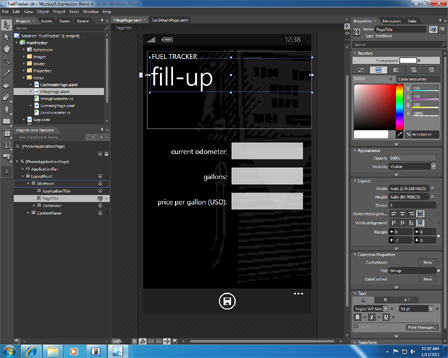
Expression Blend for Windows Phone is a design program that allows you to create and add special visual features, such as gradients, animations, and transitions. For some tasks, Expression Blend is easier to use than Visual Studio. The following list contains some tasks that are easily performed using Expression Blend.
')
Note:
This article describes the work in Visual Studio 2010 Express for Windows Phone, and will not be used by Expression Blend for Windows Phone.
Visual Studio 2010 Express for Windows Phone includes a drag-and-drop designer that simulates the look and feel of a phone, a code editor, and a debugger. If you have worked with Visual Studio to develop other types of applications, you will find an environment for developing mobile applications very familiar. The following image shows the appearance of Visual Studio 2010 Express for Windows Phone.
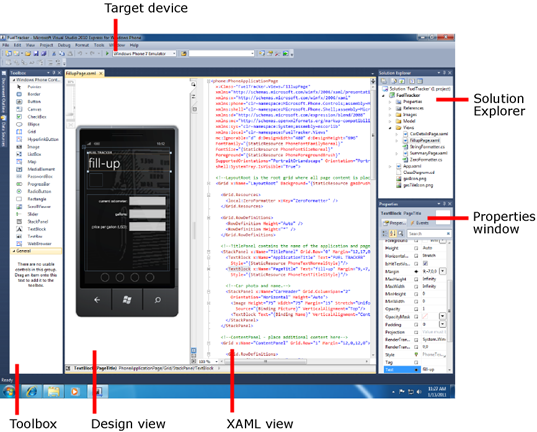
Designer for Windows Phone contains toolbar (Toolbox), design mode (Design view), XAML mode (XAML view), Solution Explorer (Solution Explorer) and Properties window (Properties window), similar to the standard Visual Studio designer. Two key differences are that in design mode, the surface looks like a Windows Phone device, and a target device (Target device) has appeared that will allow you to choose whether you will debug the application on the device or on the emulator. The following image shows the emulator in portrait and landscape orientation.

It is important that you know about the established principles of interface design, if you plan to publish your Windows Phone applications in the App Hub. Design guidelines describe how to design a user interface for your application.
Recommendations on interface design, certification requirements and other important information will be repeated in this article where it is needed.
The following table summarizes the basic principles of interface design and application requirements that must be considered when designing and developing your application. A complete and most up-to-date list of recommendations for designing an interface can be found at the following link.
UI Design and Interaction Guide for Windows Phone 7
Below are some links to additional resources where you can learn more about developing for Windows Phone.
Next part
Application creation tools
When you install the Windows Phone Developer Tools, you get the following free tools and components.
- Expression Blend for Windows Phone
- Visual Studio 2010 Express for Windows Phone
- Windows phone emulator
- Zune software
- XNA Game Studio 4.0
- Silverlight
- .NET Framework 4
Expression Blend for Windows Phone
Expression Blend for Windows Phone is a design program that allows you to create and add special visual features, such as gradients, animations, and transitions. For some tasks, Expression Blend is easier to use than Visual Studio. The following list contains some tasks that are easily performed using Expression Blend.
- Visual creation of data templates
- Use during development of test data to visualize data patterns
- Visual creation of control styles
- Creating and viewing animation
')
Note:
This article describes the work in Visual Studio 2010 Express for Windows Phone, and will not be used by Expression Blend for Windows Phone.
Visual Studio 2010 Express for Windows Phone
Visual Studio 2010 Express for Windows Phone includes a drag-and-drop designer that simulates the look and feel of a phone, a code editor, and a debugger. If you have worked with Visual Studio to develop other types of applications, you will find an environment for developing mobile applications very familiar. The following image shows the appearance of Visual Studio 2010 Express for Windows Phone.
Designer for Windows Phone contains toolbar (Toolbox), design mode (Design view), XAML mode (XAML view), Solution Explorer (Solution Explorer) and Properties window (Properties window), similar to the standard Visual Studio designer. Two key differences are that in design mode, the surface looks like a Windows Phone device, and a target device (Target device) has appeared that will allow you to choose whether you will debug the application on the device or on the emulator. The following image shows the emulator in portrait and landscape orientation.
Interface Design Guidelines (Design Guidelines)
It is important that you know about the established principles of interface design, if you plan to publish your Windows Phone applications in the App Hub. Design guidelines describe how to design a user interface for your application.
Recommendations on interface design, certification requirements and other important information will be repeated in this article where it is needed.
The following table summarizes the basic principles of interface design and application requirements that must be considered when designing and developing your application. A complete and most up-to-date list of recommendations for designing an interface can be found at the following link.
UI Design and Interaction Guide for Windows Phone 7
| Category | Design Recommendations |
|---|---|
| Navigation, frames and pages |
|
| Application bar |
|
| Back button |
|
| Screen orientation |
|
| Themes |
|
| Application settings |
|
| Touch input |
|
| Screen keyboard |
|
| Canvas and Grid Controls |
|
| Panorama and Pivot Controls |
|
| Text |
|
Additional resources
Below are some links to additional resources where you can learn more about developing for Windows Phone.
| Resource | Description |
|---|---|
| Windows Phone App Hub | Additional documentation, code samples, and Windows Phone development community. |
| Windows Phone Development Documentation | Official development documentation for Windows Phone on MSDN. |
| Silverlight Documentation | Official Silverlight and Silverlight for Windows Phone documentation on MSDN. |
| Code Samples for Windows Phone | Downloadable code samples that supplement the Windows Phone documentation. |
| Windows Phone QuickStarts | A collection of short articles that demonstrate the challenges and opportunities when developing for Windows Phone. |
| Windows Phone Developer Guide | A developer’s guide describing the history of a fictitious company that decided to use Windows Phone 7 as a client device for an existing cloud application. |
| The Windows Phone Developer Blog | A blog that contains relevant information and announcements directly from the Windows Phone development team. |
| Windows Phone 7 Development for Absolute Beginners | A series of videos for absolute beginners, not requiring any programming skills. |
| Windows Phone 7 Jump Start | A series of videos for developers who are not familiar with the development for Windows Phone using Silverlight or XNA. |
| Windows Phone 7 Training Course | Video clips and workshops on developing Windows Phone using Silverlight or XNA. |
| .toolbox | Textbooks and other resources for designers, teaching how to develop design applications for Windows Phone. Includes Expression Blend tutorials. |
| Jeff Wilcox Blog | A blog about Silverlight, Silverlight Toolkit and Silverlight for Windows Phone. Jeff Wilcox is Microsoft's lead software developer for the Silverlight team. |
| Jeff Prosise Blog | A blog about various areas of programming on .NET, including Silverlight and Windows Phone. Jeff Prosez is an experienced programmer and one of the founders of Wintellect. |
Source: https://habr.com/ru/post/117471/
All Articles